.svg)
Last modified:
Exports at the portfolio level : You can use the CSV export (report) function to export all existing measured and calculated values from one system or your entire portfolio as a CSV file.
Create a CSV export
Prerequisites
-
Your user group permissions allow you to create CSV exports
Steps
-
At the portfolio level , select
.png?cb=f084148e7c2fa730ed5ea8ddd1a476ca)
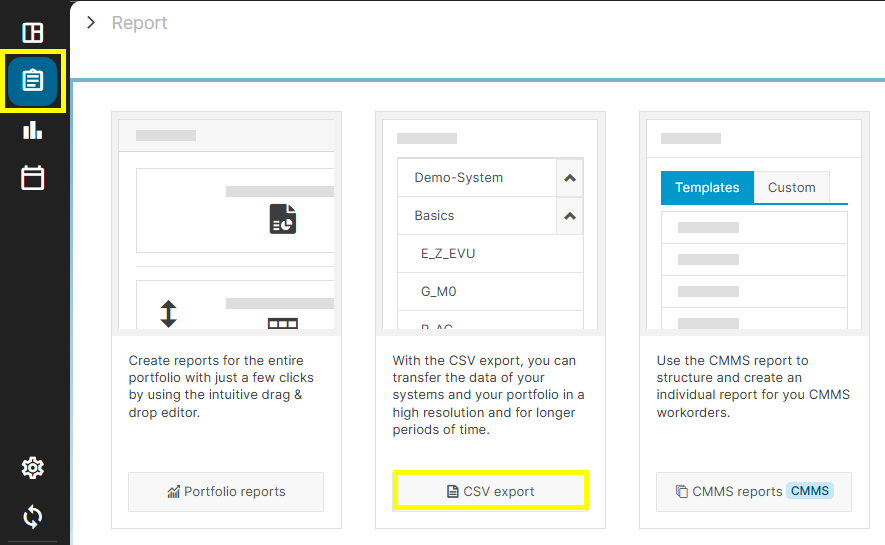
Select CSV export -
Select

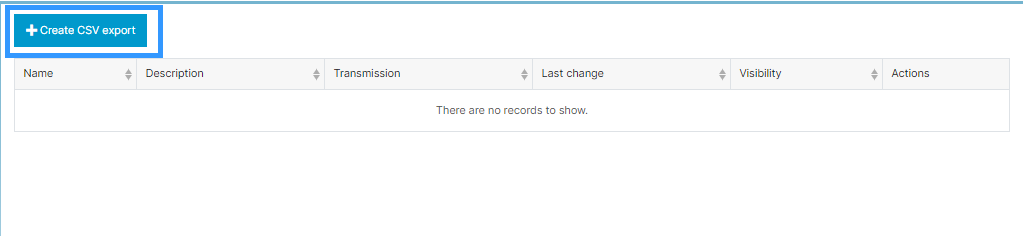
Create CSV export -
Select your desired metrics:
-
(1) Systems: Choose one or more systems as the source. If you select multiple systems, only a limited list of “matching” devices and measured values will be available.
-
(2) Devices: All available devices are grouped by type. You can select individual devices or entire groups.
-
(3) Measured values: To add a measured value, select a measured value from the list and select (4)
-
Optionally, you can (5)

-
Optionally, you can specify the (6) Measuring interval. The measurement interval depends on the data logger used. You can export a maximum of 1 million measured values with each CSV export.
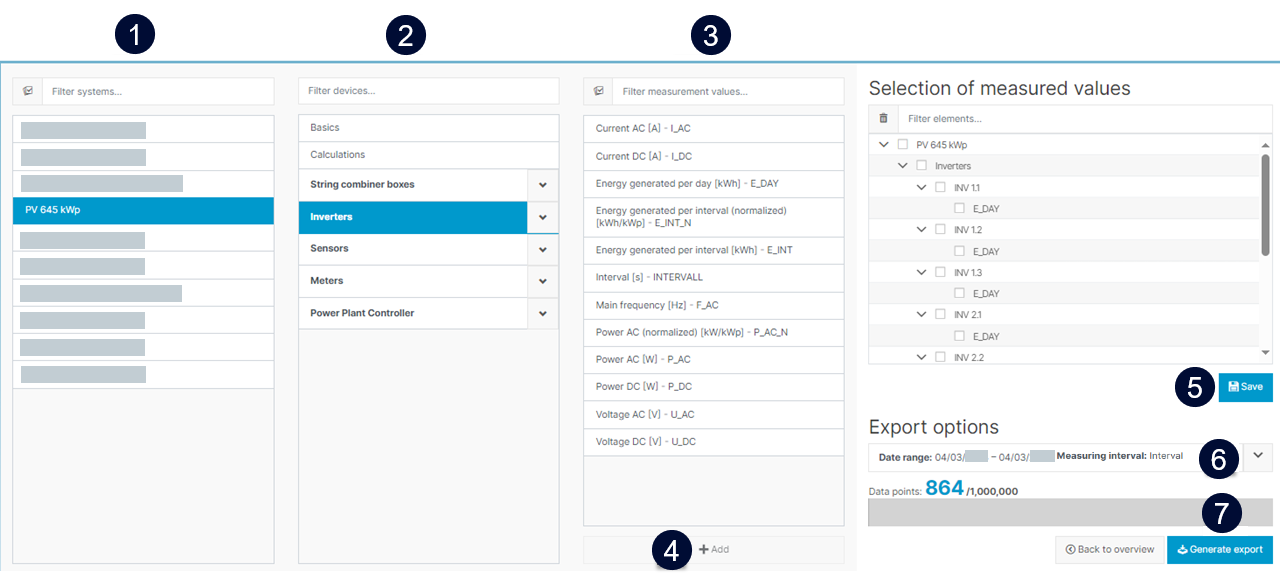
Select metrics
-
-
Select

You can now edit or view the data in a CSV-capable spreadsheet program.
Send reports via VCOM
You can send reports directly via VCOM without the need to download and email them using a separate tool.
Prerequisites
-
Select

-
Fill out the following fields:
-
Recipient: Must be in the Contacts list. Multiple recipients must be separated by a comma.
-
Sending interval: How often you want to send the report. See About sending intervals.
-
Measuring interval: The options will vary depending on your data logger settings
-
-
Select
The report will be generated and sent for the upcoming interval.
Further actions
-

About sending intervals
If you have configured regular sending intervals for your reports, the reports are sent at 5 AM local time for the systems included in the export. For multiple systems in different time zones, the report is sent when the first system reaches 5:00 AM local time.
-
Daily: Sent each day
-
Weekly: Sent each Monday
-
Monthly: Sent on the first day of each month