.svg)
Last modified:
Find all your subsystems at system level >
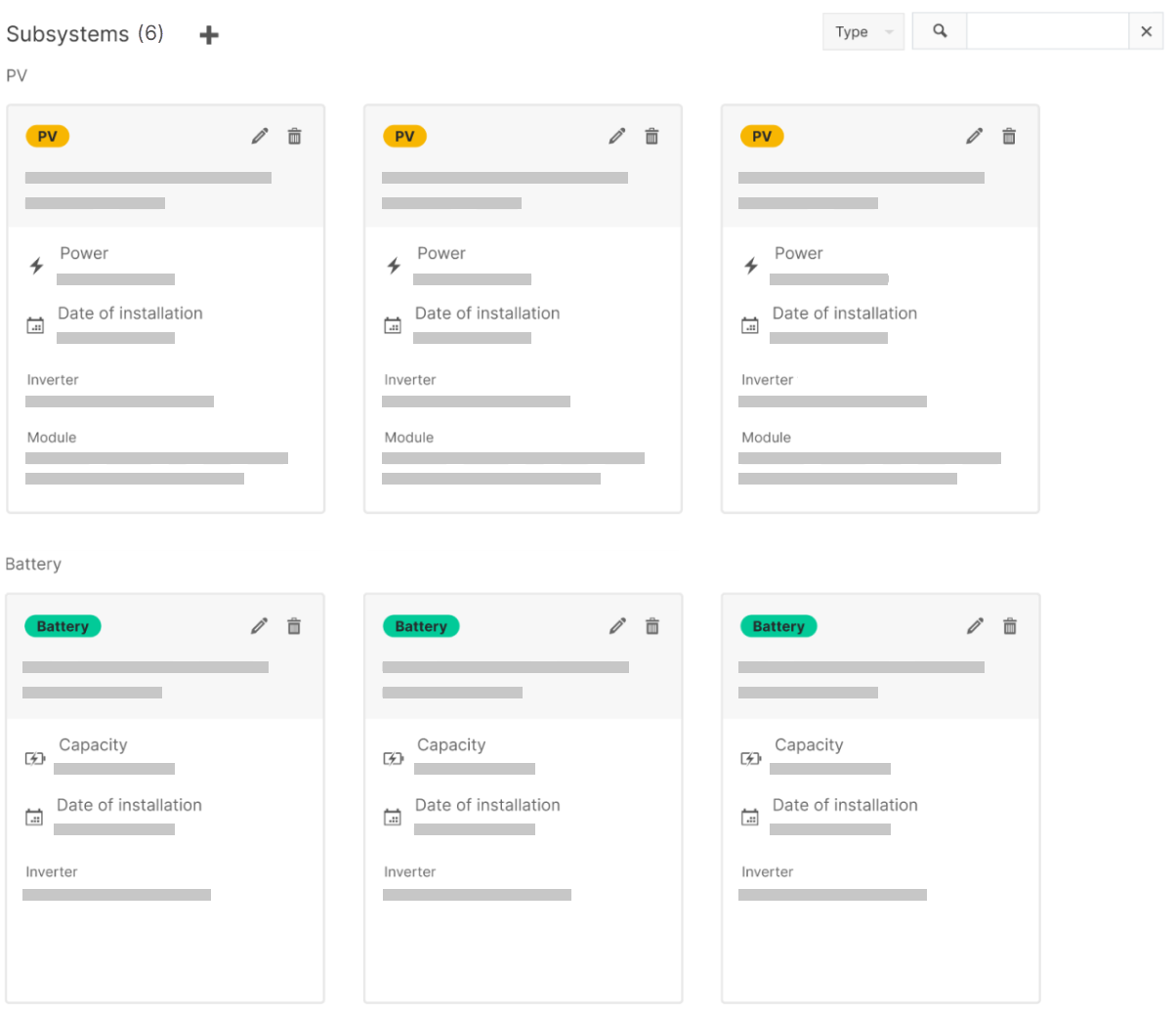
About subsystems
What is a subsystem?
A subsystem is a homogeneous, component-specific, functional, or logical segment of your system that is simulated separately.
When to set up a subsystem?
Required
You must set up a subsystem for each system segment with a different structure, such as:
-
Different inverter category (PV, battery, or hybrid, which is PV + battery). The inverter category determines the overall subsystem type you must set up.
-
Different manufacturer/model type of inverter.
-
Different number of strings per maximum power point tracker (MPPT).
-
Different number of PV modules per string.
-
Different battery capacity per busbar.
-
Different manufacturer/model type of PV modules.
-
Different tilt or azimuth/orientation of PV modules.
Examples
You can only group identical structures and components into one subsystem.
-
Your system has a PV and a battery inverter → You must set up at least 2 subsystems.
-
Your system has an inverter with 10 connected strings, each having 20 modules, and an inverter of the same model type with 5 connected strings à 20 modules each → You must set up at least 2 subsystems.
-
Your system has an inverter with 5 strings per maximum power point tracker (MPPT) à 20 modules each and an inverter of the same model type with 5 strings per MPPT à 40 modules each → You must set up at least 2 subsystems.
-
Your system has an inverter with 10 connected strings à 20 modules of module type A each and the same number of inverters of the same model type with the same number of connected strings and modules, but of module type B → You must set up at least 2 subsystems.
-
Your system has three inverters with 10 connected strings à 20 modules with tilt 40° each and three inverters of the same model type with the same number of connected strings and models with tilt 60° each → You must set up at least 2 subsystems.
Note on virtual systems
You must also set up subsystems for virtual systems, or rather, you must recreate the subsystems of the respective source systems in the virtual system.
Optional
You can optionally set up a subsystem despite a homogeneous inverter and module setup if you want to split up your system into several logical segments for a user-defined overview.
Example
All your system’s inverters have the same configuration (model type, number of strings and modules per string, tilt and azimuth), but they are located once south and once north of the highway. You can set up two subsystems to monitor the northern and southern segments separately.
Not applicable
Caution
If your site has multiple power plant controllers (blue’Log XC data loggers or third-party PPCs) and you want to monitor each individually, each controller should be configured as a separate system, not as a subsystem. Otherwise, the performance ratio will not be calculated.
Example: A site has PV production across three rooftops, each with its own PPC. In this case, configure each rooftop in VCOM as a separate system.
To view the overall PR for the entire site, you can combine these individual systems into a virtual system in VCOM.
If you require further assistance, contact Support.
What effects does setting up a subsystem have?
With setting up subsystems the following happens:
-
You determine your system plan theoretically. The hierarchy is visible in the System plan portlet if you have selected a Default system profile type in your system’s Site data. This applies only to physical and not to virtual systems. Virtual systems always use an advanced system profile.
-
You determine your system’s total area and the overall installed power, and therefore the corresponding normalizing factor. This is also necessary to correctly display normalized charts in the Evaluation tab at system level . Together with information on tilt, orientation, or installation type, this is also important for the Simulation.
-
If you have already added your data source and therefore imported measured values of your inverters into the portal, you are then able to assign the correct inverters to the correct subsystems. This also results in more detailed component selection in the Evaluation tab at system level .
-
You determine your batteries' capacity and your battery inverters, which are treated differently from PV inverters in the portal. With the VCOM Battery Monitoring, you can additionally assign the correct inverters to the correct subsystems. This way the correct data is displayed in the Battery storage section of the Evaluation tab at system level .
Set up a subsystem
Technical data overview
Note
The interface of the Technical data page was completely updated in May 2025. See Updates 2025 and 2026: Technical data and subsystems wizard.
After adding your subsystems, you can find a summary of your system’s site and technical data at system level >
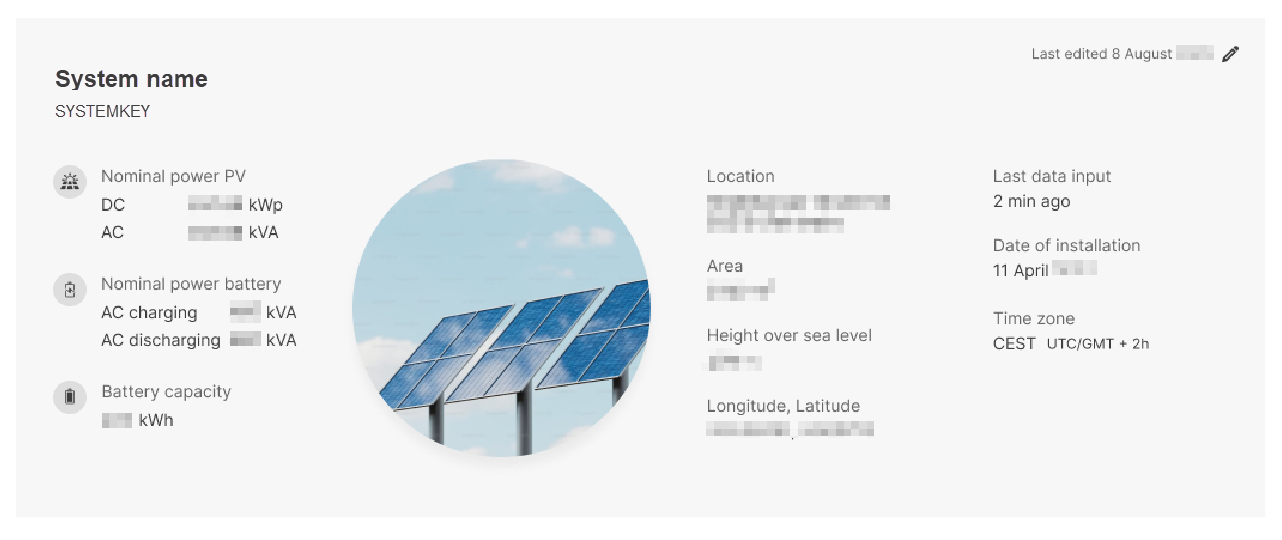
Summaries of the system’s technical data can also be displayed with the following portlets:
-
System profile portlet
-
System information portlet, with Business card and Technical data tab
-
Technical data portlet