.svg)
Last modified:
Module description
Automation is a license-based VCOM module designed to automate recurring Operations & Maintenance (O&M) processes, such as scheduling routine maintenance tasks, calculating yield loss due to curtailments, and creating tickets based on alarms.
Automation is included in the package for premium partners and is available to other partners as an additional paid module.
Scope and purpose
Key features of the Automation module include:
-
Automatically create tickets for all your systems simultaneously.
-
Automation types:
-
Can be used in conjunction with CMMS and the O&M app. In this case, the Automation module replaces the Regular events portlet.
Target group
The Automation module is intended for O&M managers, service technicians, and service teams.
Automation overview
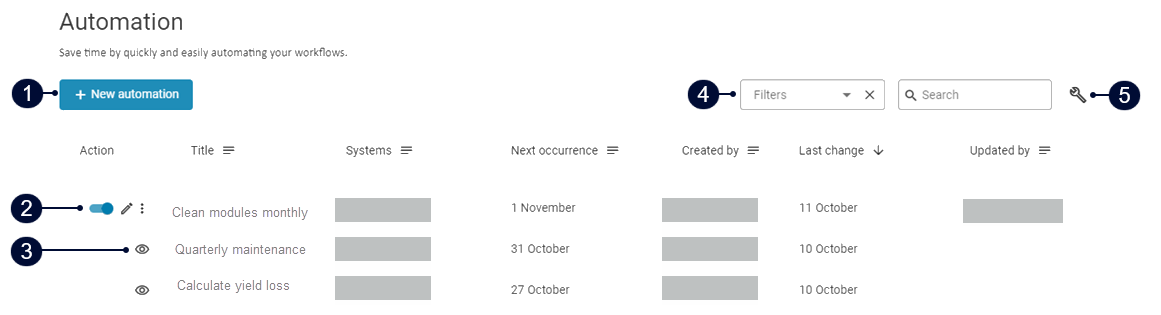
|
Name |
Description |
|
|---|---|---|
|
1 |
|
Create new automation. |
|
2 |
Further actions |
|
|
3 |
|
Automation is read-only if the user is not the creator. |
|
4 |
Filters |
Sort the list of automations by location, device, etc. |
|
5 |
|
Choose which columns are displayed in the automation overview. |


Automation permissions
-
Access: Only users in the Admin, Operations, and Technician groups can open the Automation overview and create automations.
-
Editing: By default, only the automation creator can edit an automation. Exception: Master admins (“Partner admins”) can view and edit all automations within their partner account.
-
Viewing: Other users in the admin, operations, and technician groups can view (but not edit) an automation if it affects at least one system in their portfolio. In the Automation overview, they see only the automations affecting systems in their own portfolio.