.svg)
Last modified:
About string alarms
The string alarm detects power loss at the string combiner box (single string) and inverter (input, MPPT) levels.
-
The alarms compare working (reference) strings or inputs with other strings or inputs. For string combiner boxes, the strings are grouped by device. For inverters, they are grouped by MPPT. Single strings are not monitored.
-
A minimum percentage of nominal current must be flowing through the working string or input.
-
If at least one string falls below a defined threshold, this is considered a power loss, and an alarm is triggered.
-
For systems equipped with string combiner boxes, if all strings of one combiner box are outages, all the string alarms are grouped into a single string alarm. This minimizes the overall number of alarms.
-
Make sure that the scale factor for inputs (string inverters) or strings (string combiner boxes) is configured correctly. An incorrect scale factor can cause false alarms, especially when different inputs have different numbers of strings assigned.
Parameters
-
Severity: Define the desired severity for this alarm.
-
String current: Define your threshold for “no current”. The default is ≤ 0%.
-
Reference string current: Define the minimum percentage of nominal current that must be flowing to be considered a “working string”. The default is 10%.
-
Delay after first occurrence: If you configure a delay, an alarm will only be triggered in case of persistent incidents. This helps to avoid alarms for deviations that only occur for a short time.
Example
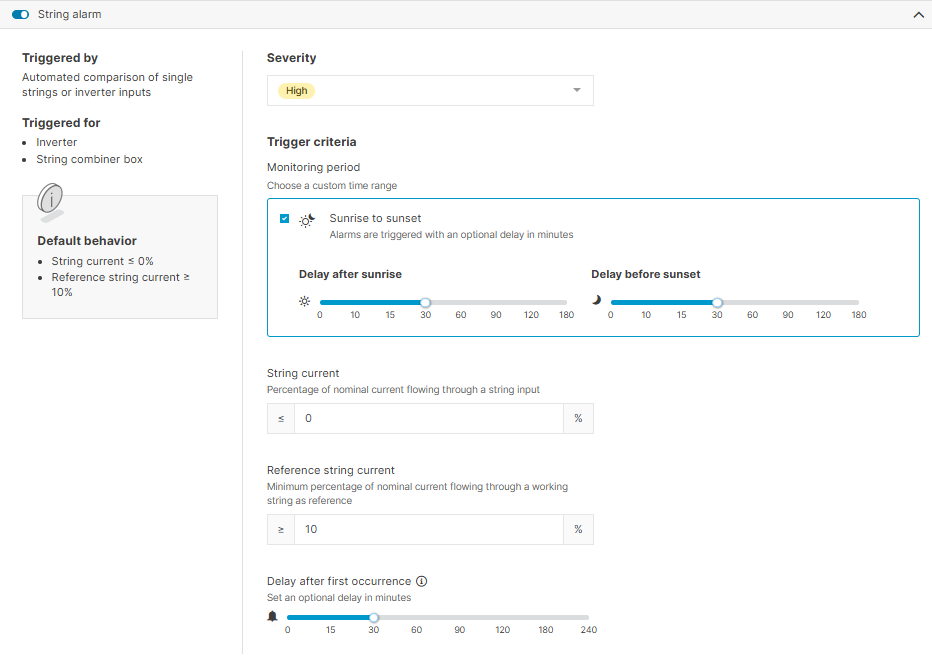
Based on the settings in the screenshot below:
-
The monitoring period begins 30 minutes after sunrise and ends 30 minutes before sunset.
-
An alarm with the severity “high” is triggered when at least one string measures 10% of its nominal current and at least one string measures no current for 30 minutes or more.
Troubleshooting: string alarms can not be activated
If you are not able to set up string monitoring, check that all strings or inputs are configured:
-
On the sidebar at system level , hover over the system for which you want to set up a string alarm.
-
Open the

-
Check that string monitoring is activated by following the steps for string combiner boxes or string inverter inputs:
For string combiner boxes
Expand for troubleshooting with string combiner boxes
Steps
-
Select the

-
Depending on your data logger, you may need to expand several menu items.
-
With a blue’Log X-series, you need to select Administration > String combiner boxes.
-
-
Select

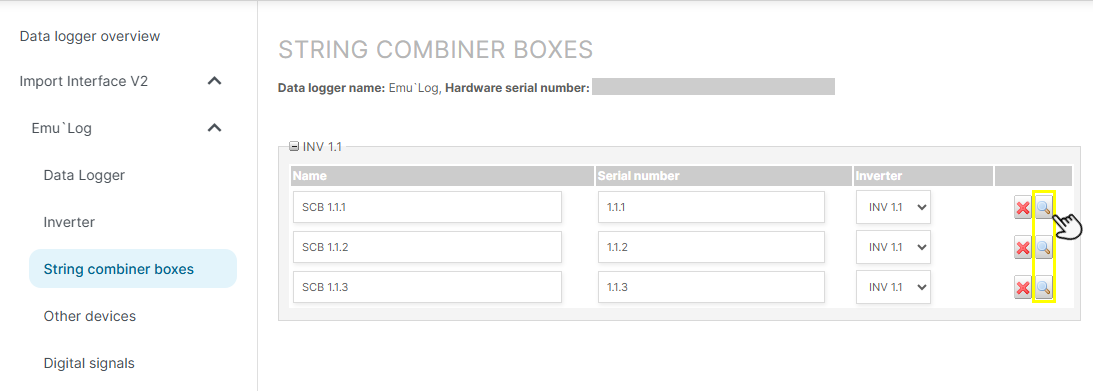
String combiner box: check the configuration of strings
-
Verify that an appropriate scale factor is used.
-
Verify that a check mark is next to each string that should be operational.
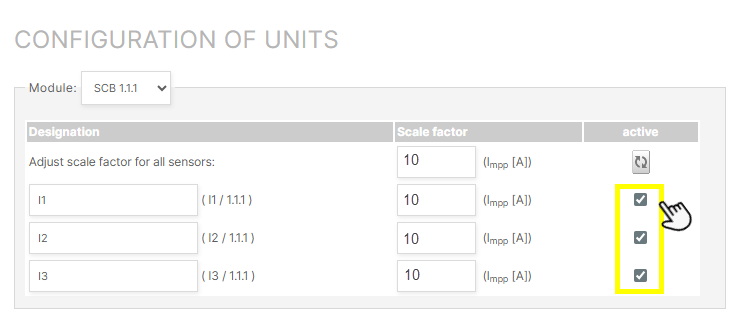
String combiner box: check that strings are activated
Example: Scale factor
You configure the string outage alarm with a string current threshold of 20%.
-
If all scale factors are set to 1, inputs with 2 strings reach the threshold much earlier than inputs with only 1 string.
-
When the scale factors are set correctly, the current values are normalized. This ensures that inputs with 1 string and inputs with multiple strings are evaluated consistently.
For string inverters
Expand for troubleshooting with string inverters
Steps
-
Select the
-
Depending on your data logger, you may need to expand several menu items.
-
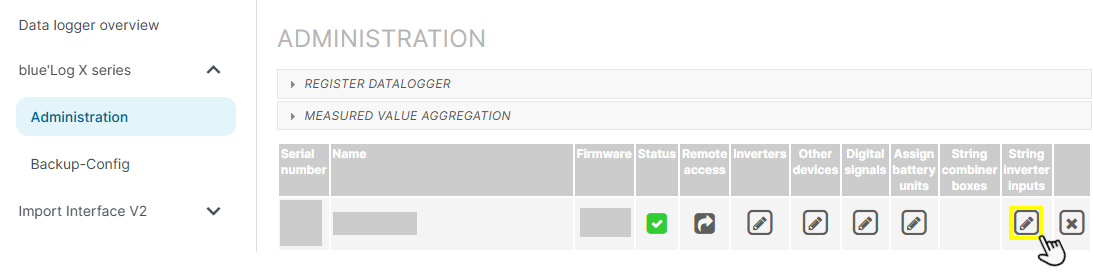
With a blue’Log X-series, you need to select Administration > String inverter inputs.
-
-
Select Edit nominal current in the Actions column to edit the nominal current for all inputs of an inverter at once. Or expand the view in the Inverter column and select Edit nominal current for each input individually.
-
Check that the toggle is activated for all inverter inputs that should be operational.
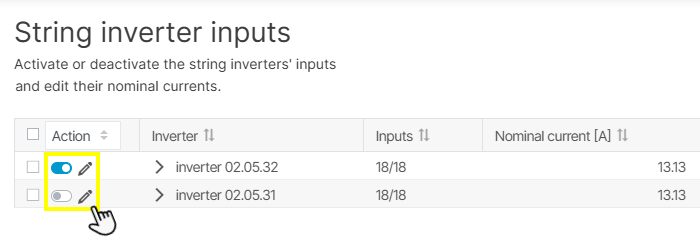
Inverter inputs: activate inputs
Note
Contact Support if you require further assistance.