.svg)
Last modified:
As a member of the user group administrator, you can:
-
Generate a token to share your assets with a partner in another organization.
-
View which assets you are sharing.
-
View who has access to your assets.
-
Revoke access to an asset.
-
Change the expiration date of shared access.
Share an asset with another organization
Prerequisites
-
You have a partnership agreement with meteocontrol
-
User group administrator
Steps
-
Select Share my assets.
-
A list of your assets appears. Select the assets you want to share.
-
Select Continue.
-
Select an expiration date for the sharing.
-
Select Continue.
-
Choose whether the partner can view and edit the system settings.
-
Select Generate token.
-
A token is generated. Select Copy to copy the token.
-
Send the token to the desired partner, for example, by email. The token is valid for 24 hours.
The partner in the other organization (recipient) must activate the token. See Add and manage assets shared with you.
Caution
If you provided access to the system settings, the recipient in the other organization now has access. Depending on the user group or team permissions the recipient has configured, additional users in their organization may also have access.
Note
Recipients of a shared asset cannot make changes that affect billing or licensing.
Further actions
-
Shared by me tab: View which assets you are sharing with other partners, as well as the authorized users and tokens.
-

-
The partner in the other organization (recipient) must confirm the change and agree to the billing conditions.
-
To extend the expiration date for multiple assets, tick the check box next to the desired assets, select the Actions dropdown menu, and select
-
-

-
Example: If access is only required for a short time, or if you change service providers.
-
-

-
You can also revoke access from a single user.
-
You cannot revoke access from a master admin or users included in Teams.
-
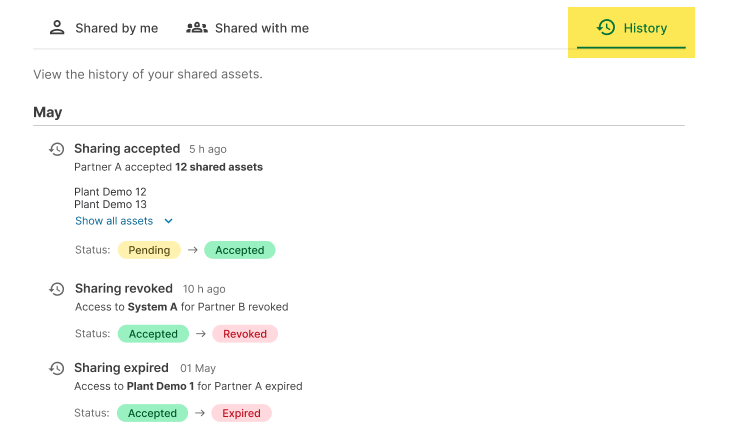
View asset sharing history
The master admin – usually the owner of an asset – can see the sharing history of an asset to track and audit who has had access, when changes occurred, and the current status of shared assets.
For more information about master admin, see Responsibilities and User groups.
To view the sharing history, go to the