.svg)
Last modified:
The VCOM legacy feature “mirrored systems” will be discontinued from November 2026. To continue accessing your systems without interruption, you must migrate to Shared assets by then. Your assigned users will remain unchanged during the migration.
Prerequisites
-
User group administrator
Steps
-
At the portfolio level , go to
.png?cb=12102cf9ad8b8bc5c973d4c89009819a)

-
A window opens. If the column Partner is not visible, go to

-
Tick the check box Partner.
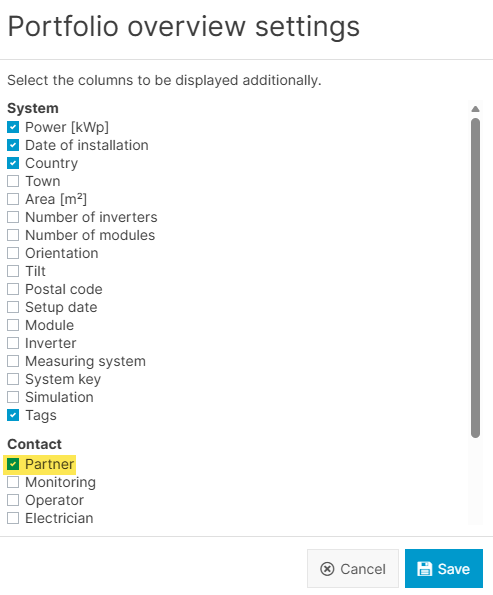
Tick the check box “Partner” in the portfolio settings
-
Select

-
Based on the name in the Partner column, identify which systems are not yours.
-
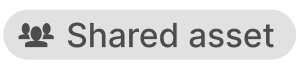
If a system does not have the
-
Contact the owner of the mirrored system to request access to the system(s) via Shared assets.
Example
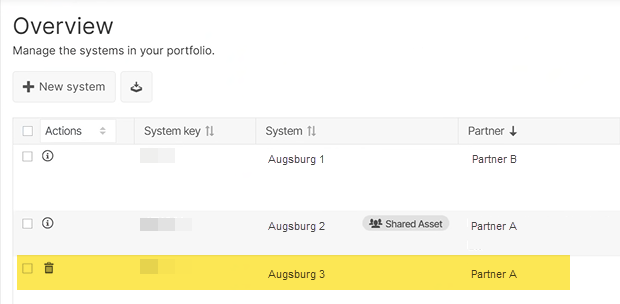
View of portfolio settings for Partner B:
-
Augsburg 1: Partner B is the owner: No action required.
-
Augsburg 2: Partner A is the owner and has already shared it with Partner B via Shared assets: No action required.
-
Augsburg 3: Partner A is the owner. This is a “mirrored system”: Partner A must ask Partner B to share the system via Shared assets.