VCOM Cloud

Portlets and tabs

Last modified:


VCOM allows you to customize the view of your portfolio and system level content with the information that is most relevant to you. Therefore, you can modify VCOM’s pre-configured portlets and tabs to suit your needs.
Customize the view of your portfolio and system level content with the help of tabs and portlets

Portlets

What are portlets?

Portlets are small, re-sizable windows that give you a quick overview of the status of specific data, such as alarms, tickets, analysis graphics, battery charge, webcam, or upcoming events.

What types of portlets are there?

For more information on specific portlet types, see Portlets.

Example of a portlet

Do all portlets behave the same?

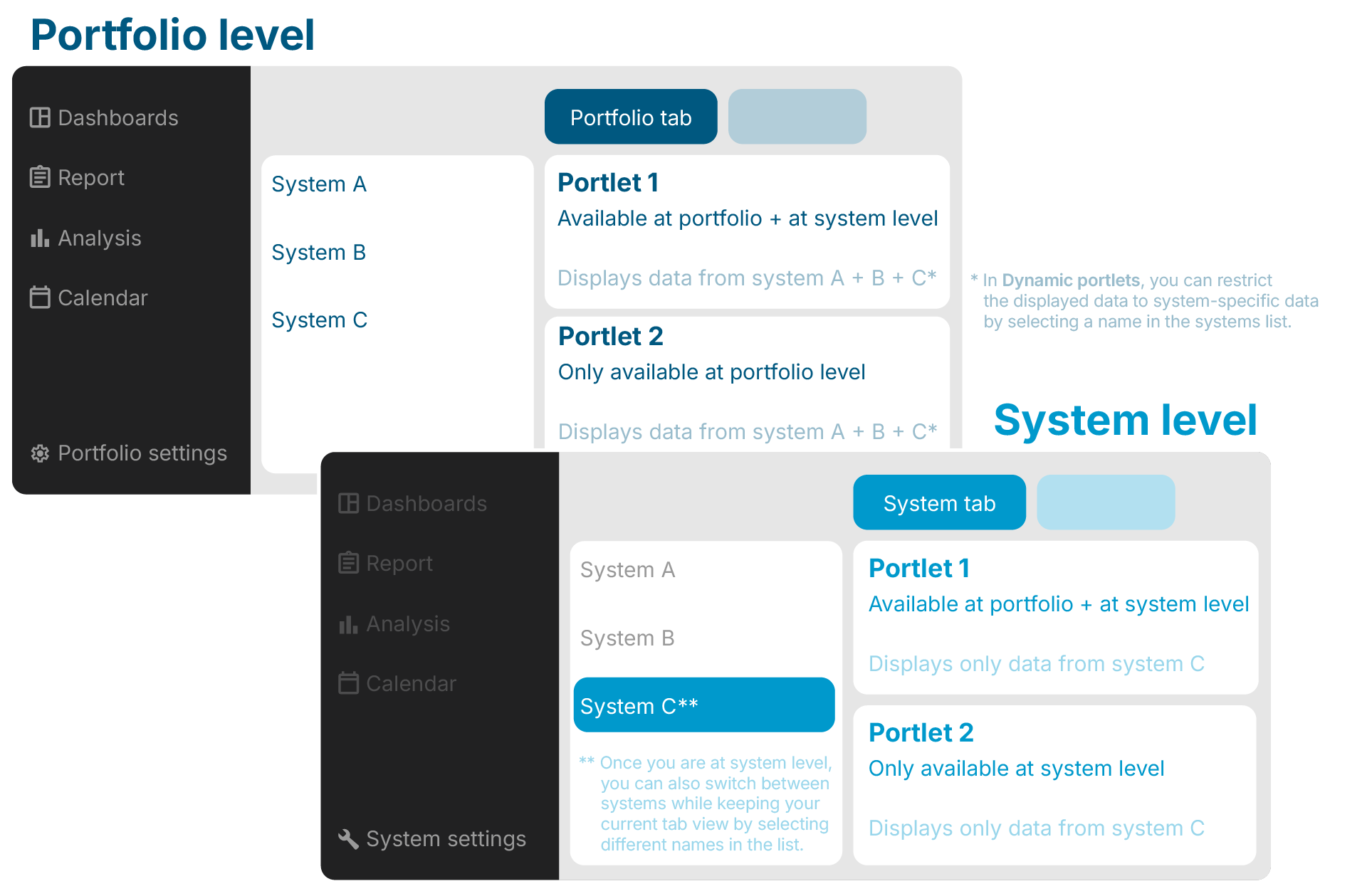
You can add some portlets only at portfolio level (= Portfolio portlets), some only at system level (= System portlets), and some on both levels. To learn more about the different operating levels, see Portal structure.

Depending on the portlet, it can have the following properties:

  • Dynamic portlet: The portlet is updated when you select a different system name from the systems list.
  • Static portlet: The portlet displays the same information regardless of the selected system.

Add a portlet at portfolio or system level

Note

You can add some portlets only at portfolio level , some only at system level , and some on both levels. The respective portlets are available in the level’s respective Portlet center.

Prerequisites
  • None

Steps
  1. At portfolio level or system level , select icon-plus-circle2.png Options > icon-grid6.png Portlet center.

    Enter the Portlet center at portfolio level
    Enter the Portlet center at portfolio level
  2. In the appearing window, select icon-plus-circle2.png Add portlet for the desired portlet.

  3. Icon.png Close the portlet center.

    image-20250612-173518.png
    Add a portlet at system level

Your portlet is placed in the currently selected tab.

Further actions
  • Rearrange a portlet: Drag and drop it to your preferred location within the content area.

  • Resize a portlet: Hover over the portlet’s border and adjust its size accordingly.

  • Configure portlet (for example, hide a column): Select icon-wrench1.png Settings in the upper right of the portlet and make your adjustments. Whether and which settings are available depends on the specific portlet. For information on further portlet functions, see Portlets.

  • Reset all portlet configurations to default: Select icon-plus-circle2.png Options > icon-reset.png Reset portlets.

Tabs

What are tabs?

Tabs group portlets into separate folders. For example, you might want to group all of the portlets relating to monitoring, alarms, or power control into one tab.

At portfolio level and system level , you can modify and manage tabs by yourself.

Examples of tabs
Examples of tabs


Create a tab at portfolio level

Prerequisites
  • None

Steps
  1. At portfolio level , select icon-plus-circle2.png Options > icon-pencil5.png Manage tabs.

    Enter the window to manage tabs at portfolio level
  2. In the appearing window, give the new tab a Tab name and select icon-plus2.png Create.

  3. Optionally, also create a subpage for the tab:

    1. Give it a Page name.

    2. Select the desired parent tab from the dropdown. You can only select user-defined tabs to be the parent tab.

    3. Select the other icon-plus2.png Create.

  4. Optionally, rearrange the order and hierarchy of tabs and subpages by dragging and dropping their names accordingly.

    Create tabs and subpages
  5. Select icon-floppy-disk1.png Save and icon-cross1.png close the window.

The new tab and subpage appear at the Portfolio level .

📗

Example

My tab tab with the sub-page Subpage 1.

Example for user-defined portfolio-level tab with subpage
Further actions
  • Add portlets to the new tab and subfolder.

Create a tab at system level

Note

  • You can only create a total of 10 tabs.

  • You can not change the order of the tabs.

Prerequisites
  • None

Steps
  1. At System level , select icon-plus-circle2.png Options > icon-plus2.png New tab.

    Initiate the creation of a new tab
  2. Give your tab a name and press Enter.

Your new tab appears in the tab bar. Open it by selecting its name. It will be empty at first.

Further actions
  • Add portlets to your tab.

  • Delete a tab by hovering over it > icon-menu1_upright.png More options > icon-bin1.png Delete tab.

  • Rename a tab by hovering over it > icon-menu1_upright.png More options > icon-pencil5.png Edit name or double click the name and change it directly.