.svg)
Last modified:
Add a portlet at portfolio or system level
Note
You can add some portlets only at portfolio level , some only at system level , and some on both levels. The respective portlets are available in the level’s respective Portlet center.
Prerequisites
-
None
Steps
-
At portfolio level or system level , select


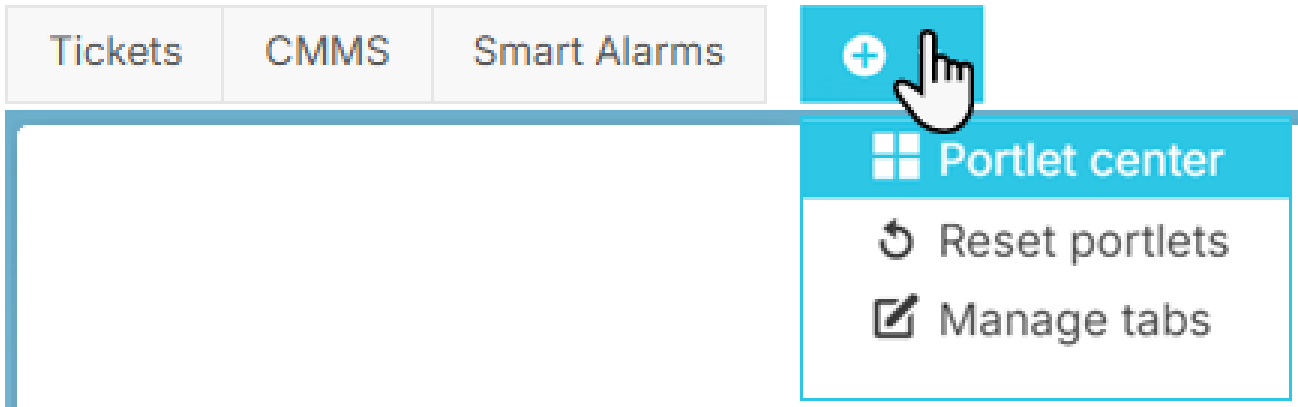
Enter the Portlet center at portfolio level -
In the appearing window, select
-

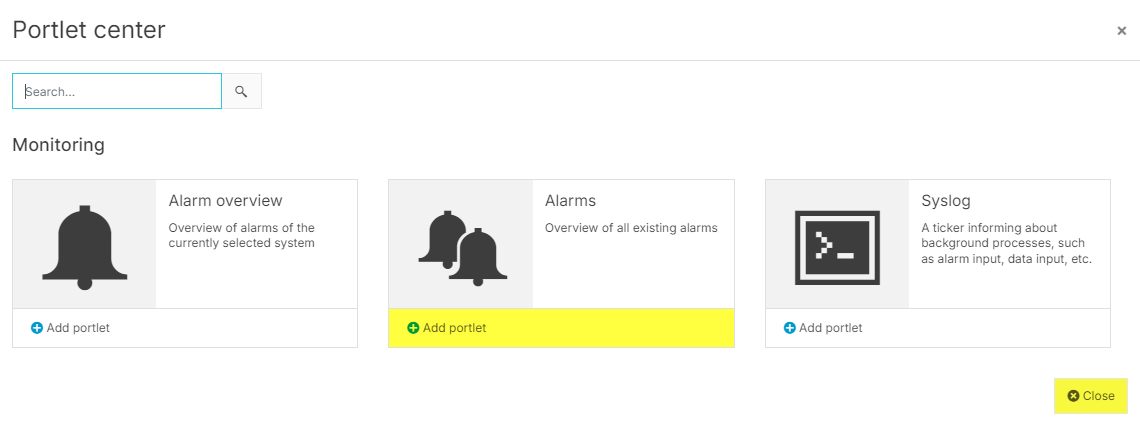
Add a portlet at system level
Your portlet is placed in the currently selected tabs
Further actions
-
Rearrange a portlet: Drag and drop it to your preferred location within the content area.
-
Resize a portlet: Hover over the portlet’s border and adjust its size accordingly.
-
Configure portlet (for example, hide a column): Select

-
Reset all portlet configurations to default: Select

Manage portlets for others
Impersonate a user to configure their dashboards before they activate their account and sign in for the first time. See Impersonate a pending user (mc Cloud documentation).