.svg)
Last modified:
Set up a blue'Log data logger
General tips
-
Have the data source (data logger, etc.) serial number on hand. When entering the serial number, pay attention to uppercase and lowercase letters and empty spaces.
-
The data source name can be freely selected. For recommendations, see our Naming guideline.
-
If possible, use data sources that support the same Measuring interval or align the intervals. Otherwise minor features may not work properly.
-
We strongly recommend ticking the check box Automatic device creation to ensure that VCOM automatically creates any new devices found during each data import.
-
If possible, perform a connection test once you have completed the configuration in both VCOM and the data source.
Data loggers only
-
For data loggers, update the firmware to the latest version prior to configuration.
-
For data loggers, any import that uses FTP can also use SFTP. The access data, such as the FTP server address, user name, and password remain identical. Only the port changes from port 21 (FTP) to port 2222 (SFTP).
APIs only
-
If you experience import issues with the API, please contact the respective API provider first.
-
Each day at midnight, VCOM checks for complete data and requests data from the past 7 days. If there are no limitations from the API and the data is available, the gaps will be filled.
Follow these steps to set up a blue'Log data logger, establishing a direct connection to the blue'Log web portal.
Prerequisites
-
User group technical customer or higher
Steps
-
At system level , go to


-
Under New source of type, select blue'Log X series as the data source type from the dropdown.
-
Select Add.
-
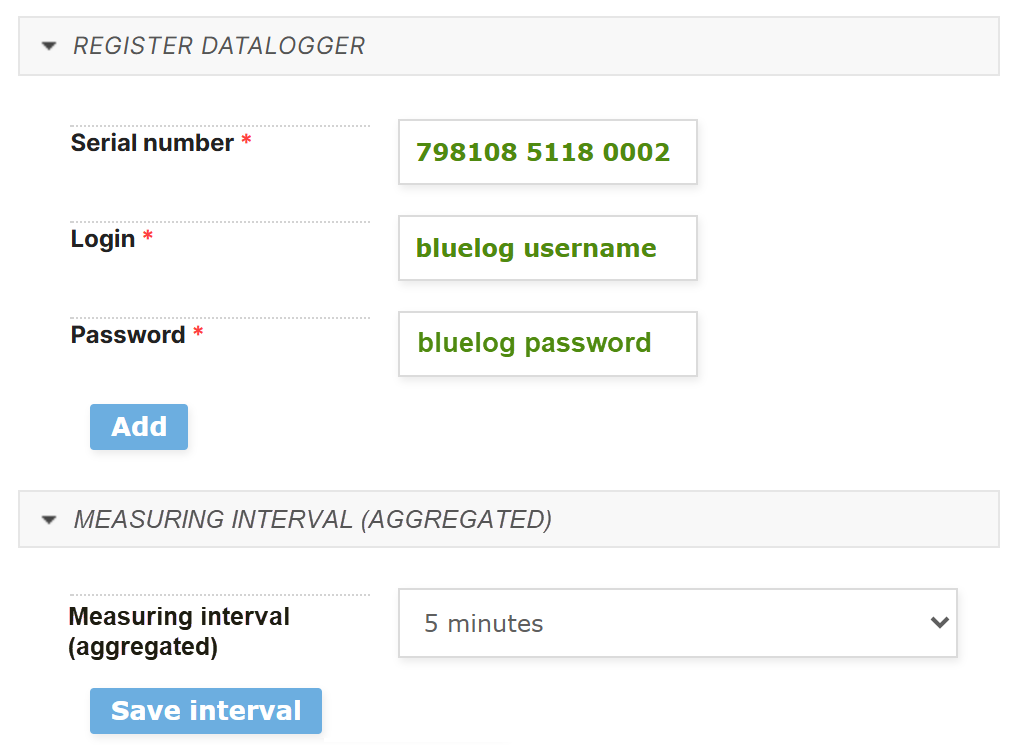
Enter the serial number (including empty spaces), your blue'Log login, and password, and select Add.
-
In the Measuring interval (aggregated) dropdown, select the desired interval and select Save interval. This determines to which interval blue’Log XM/XC’s 1-minute values are aggregated after two weeks.
-
Verify that the data source is communicating with the meteocontrol server. See Verify communication with the VCOM server.
The data logger is set up.
Remotely access the blue’Log web interface directly from VCOM Cloud
Once you have registered your meteocontrol data logger to a VCOM plant, you can remotely access the web interface directly from VCOM Cloud without any additional setup.
In VCOM, navigate to 
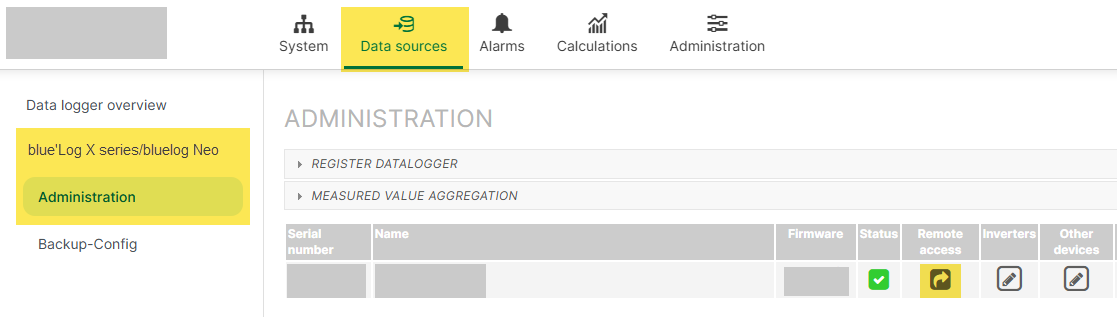
You can also directly access the data logger in VCOM via the Data logger overview portlet.