.svg)
Last modified:
Secure authentication with mc Cloud
With mc Cloud, meteocontrol provides a secure user and identity management portal to better protect your VCOM account, for example by allowing you to set up two-factor authentication (2FA). See also mc Cloud.
After receiving an in-app trigger, you can migrate your VCOM account to mc Cloud on your own. If you have multiple accounts, you must migrate them individually.
Prerequisites-
None, but you have to wait for the in-app trigger in VCOM.
-
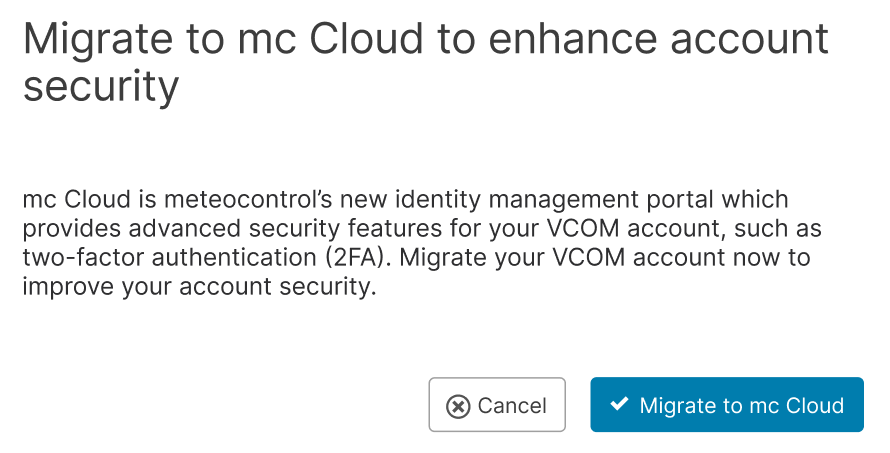
A pop-up window appears in VCOM requesting you to migrate to mc Cloud. You can not close this window as a migration is mandatory for you.
-
Select Migrate to mc Cloud to start the migration process.
-
A new browser tab opens.
-
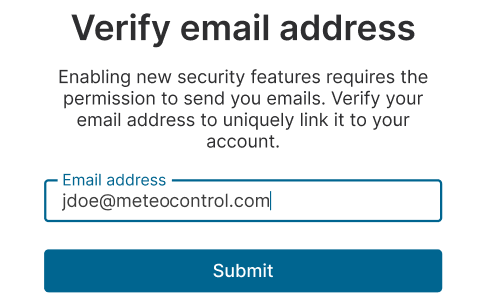
Check the Email address already entered in the input field: It should be the email address of your current VCOM account. If you want to use a different email address or plus-addressing for your mc Cloud account, change the input. See expand box below for more information.
Caution
You can not use the same email address for multiple accounts as the email address becomes the main account identifier in mc Cloud.
-
Select Submit.
-
A submit confirmation appears.
Caution
Do not close the current tab until you have received the email in the next step. If you do not receive the email (also not in your spam folder), you can re-submit your email address only in this tab. Check the spelling very carefully.
-
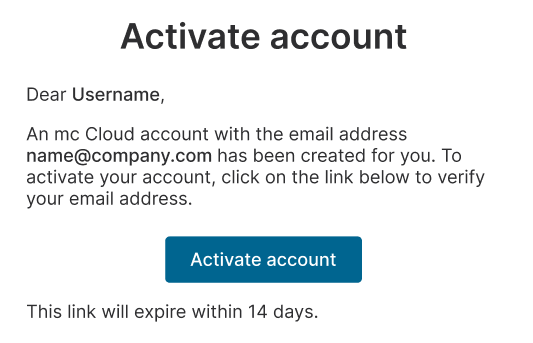
You receive an email to activate your mc Cloud account.
-
Select Activate account there accordingly.
-
A new browser tab opens and you are informed about the actions you must perform now.
-
Select Confirm your action.

-
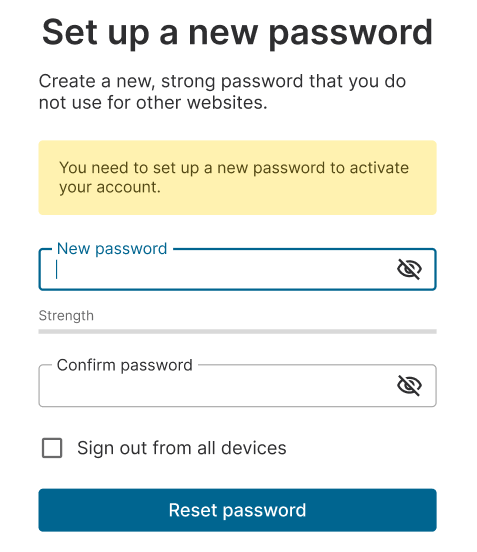
On the next page, you set and confirm the password for your mc Cloud account. Due to increased security standards in mc Cloud, the password requirements have been strengthened compared to VCOM. If you already use a strong password for your VCOM account, you can reuse it here. Otherwise, you must set a new password. The dynamic input field will indicate when you meet the password requirements.
-
Select Reset password.
-
You receive an email that confirms your password update.
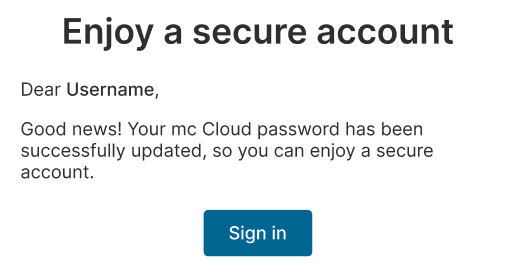
Your VCOM account is now migrated to an mc Cloud account, and you can use all new security features and enter VCOM from the mc Cloud portal. If you belong to the user group administrator in VCOM, you will at least have the user role manager in mc Cloud.
Further actions-
Select Sign in to mc Cloud and use your new sign-in credentials. See Sign in to your mc Cloud account.
-
Enhance your security by setting up a two-factor authentication (2FA). See Manage two-factor authentication (2FA) in mc Cloud.
-
Return to VCOM from within mc Cloud. See Access your applications from within mc Cloud.
Caution
If you also use the VCOM Monitoring or the VCOM O&M app, make sure you update them to at least the versions listed below to ensure enhanced security.
-
VCOM Monitoring app:
-
Andoid: 5.2.1
-
iOS: 5.2.2
-
-
VCOM O&M app:
-
Android: 6.0.35
-
iOS: 7.0.3
-