.svg)
Last modified:
Set up an SMA Data Manager M
General tips
-
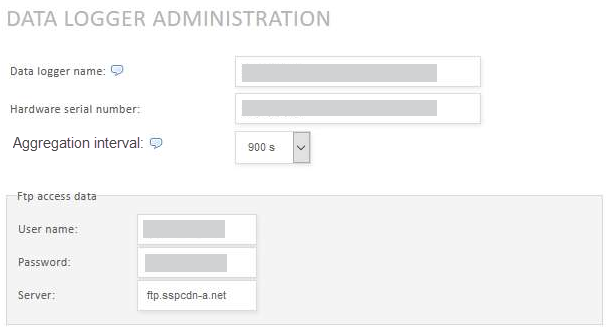
Have the data source (data logger, etc.) serial number on hand. When entering the serial number, pay attention to uppercase and lowercase letters and empty spaces.
-
The data source name can be freely selected. For recommendations, see our Naming guideline.
-
If possible, use data sources that support the same Measuring interval or align the intervals. Otherwise minor features may not work properly.
-
We strongly recommend ticking the check box Automatic device creation to ensure that VCOM automatically creates any new devices found during each data import.
-
If possible, perform a connection test once you have completed the configuration in both VCOM and the data source.
Data loggers only
-
For data loggers, update the firmware to the latest version prior to configuration.
-
For data loggers, any import that uses FTP can also use SFTP. The access data, such as the FTP server address, user name, and password remain identical. Only the port changes from port 21 (FTP) to port 2222 (SFTP).
APIs only
-
If you experience import issues with the API, please contact the respective API provider first.
-
Each day at midnight, VCOM checks for complete data and requests data from the past 7 days. If there are no limitations from the API and the data is available, the gaps will be filled.
Configuration details
|
Protocol |
FTP |
|---|---|
|
File format |
XML |
|
Measuring interval |
5 min |
|
Server |
|
|
Port |
21 |
|
Data Manager serial number |
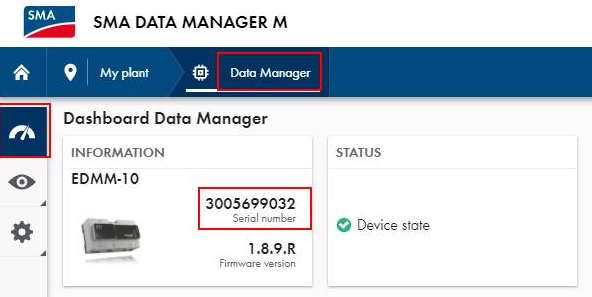
|
Configuration: Data logger
-
Copy the FTP access data specified in the data logger configuration and store them in the SMA Inverter Manager (FTP server, FTP user name, FTP password).
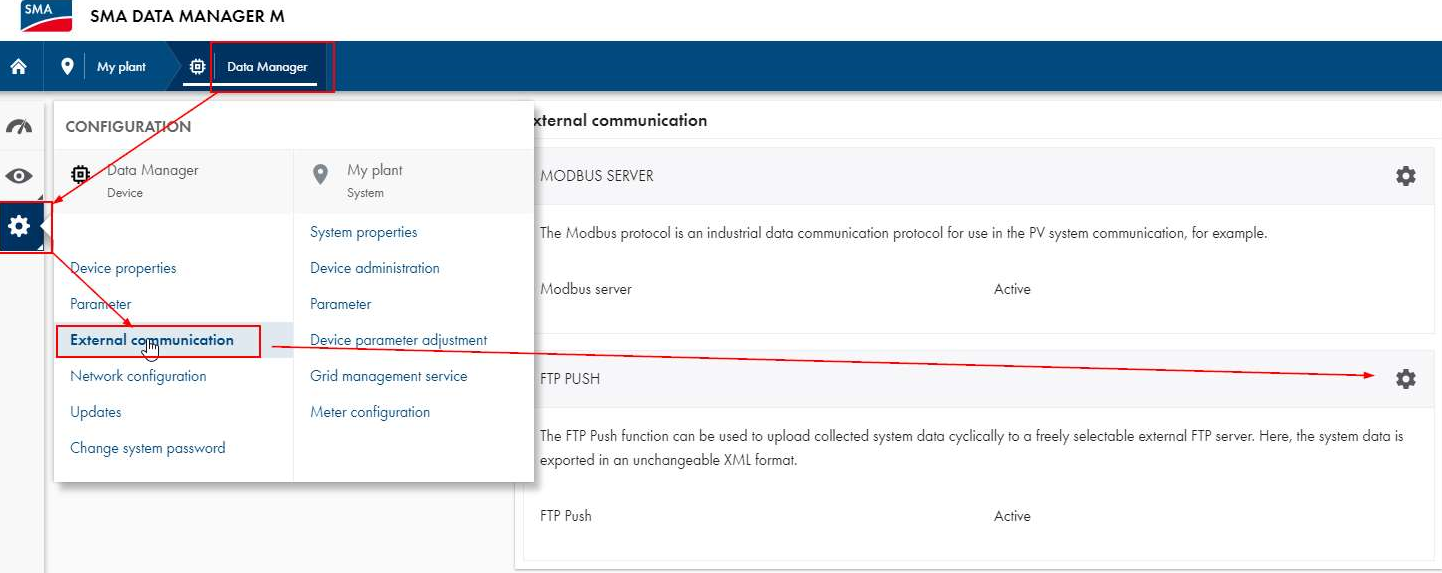
SMA Data Manager: Navigate to FTP push settings
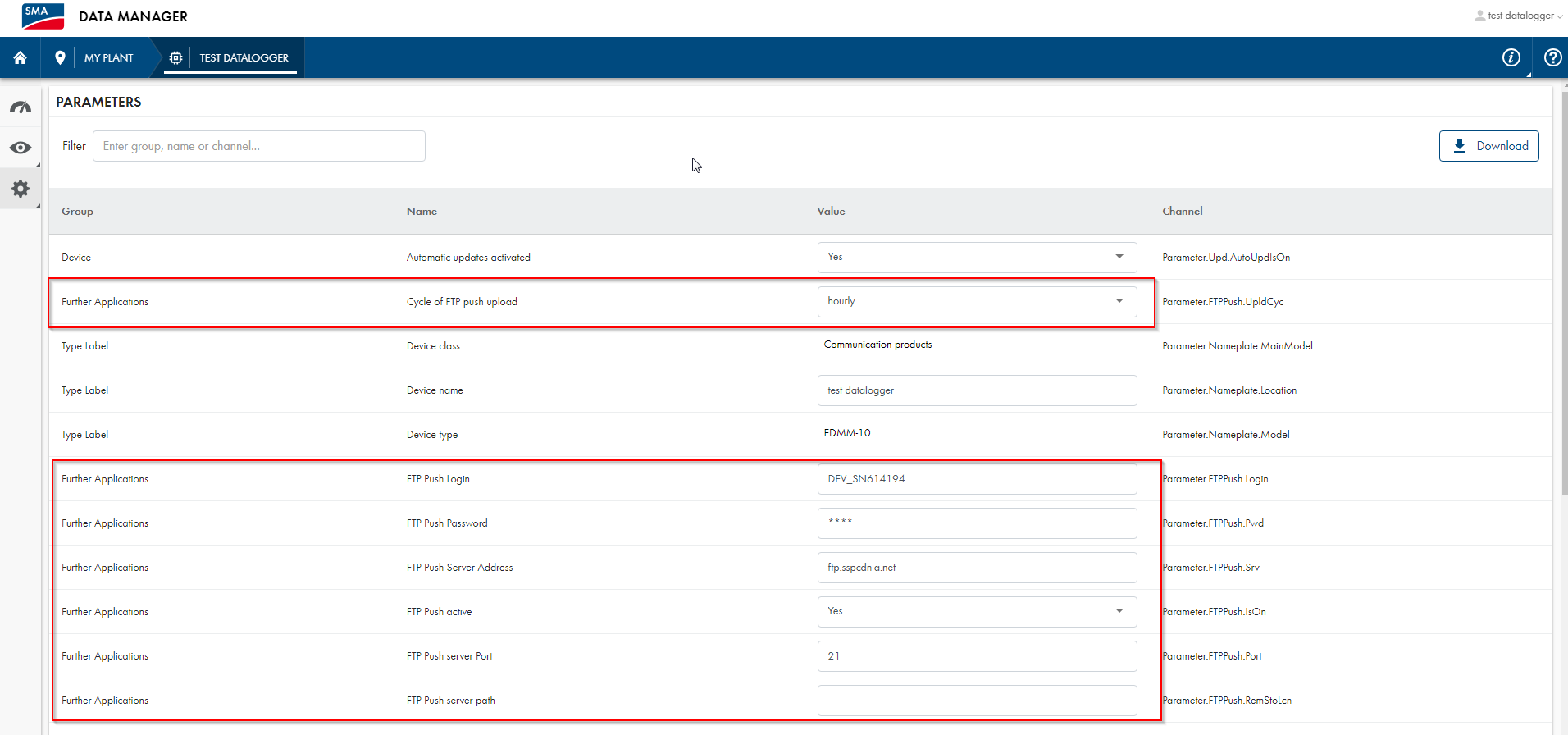
SMA Data Manager: FTP Push and transmission interval -
Perform a connection test.
Configuration: VCOM
Prerequisites
-
User group technical customer or higher
Steps
-
At system level , go to


-
Under New source of type, select SMA DataManager as the data source type from the dropdown.
-
Select Add.
-
Fill in required input fields.
-
Select Register new data logger.