.svg)
Last modified:
Set up an automation with a recurring date
You can automatically create tasks that occur at regular intervals, such as inspections, mowing the grass, etc.
Prerequisites
-
User group technician or higher
-
To create a ticket with a work order: you must use CMMS and have the CMMS operations role.
Steps
-
Select the
.png?cb=12102cf9ad8b8bc5c973d4c89009819a)
-
A dialog opens. Navigate to

-
Select Recurring date >

-
Select the frequency and start and end date, then select
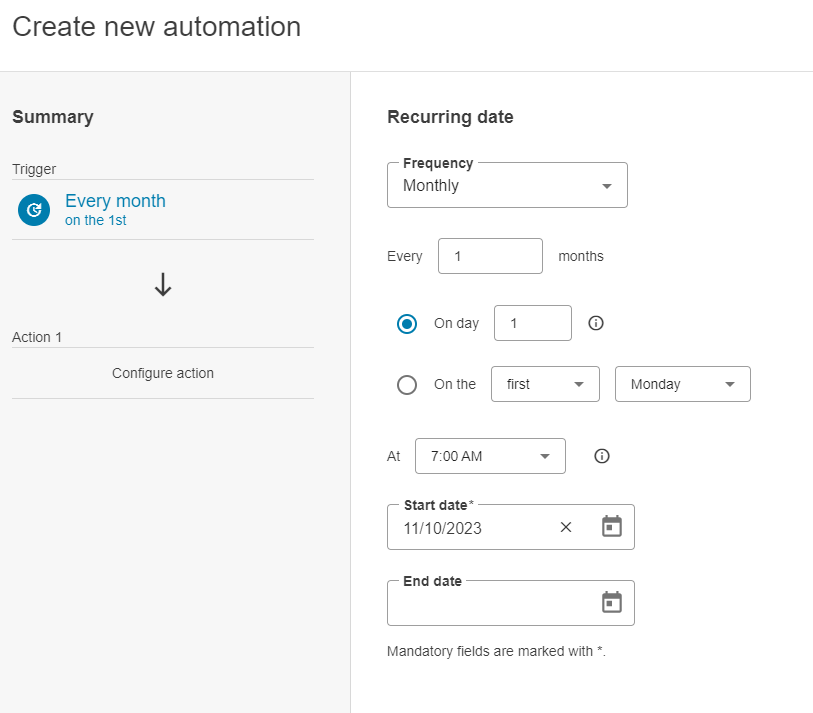
Create a new automation
-
Decide which action should follow when the alarm is triggered, then select
-
Ticket with work order: CMMS ONLY Automatically creates a ticket with a work order.
-
Ticket: Automatically creates a ticket for recurring events, for example as a reminder or for reporting purposes
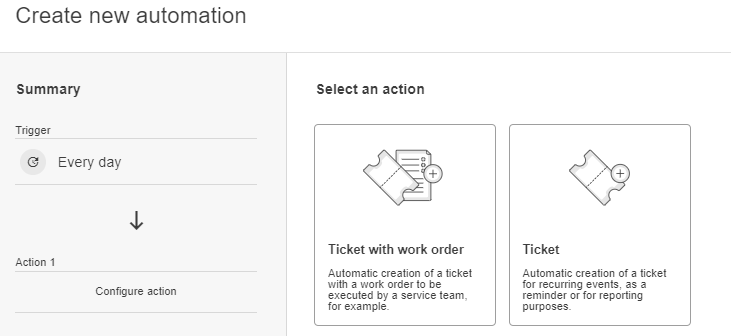
Select ticket type
-
-
Add ticket details:
-
If you selected Ticket: Enter a title. You can also optionally add a description, priority, ticket cause, and include information from this ticket in your reports. Select
-
If you selected Ticket with work order: Give the work order a title. You can also optionally add a description, priority, ticket cause, and include information from this ticket in your reports. Configure your desired forms/templates, checklists, and contacts. Select
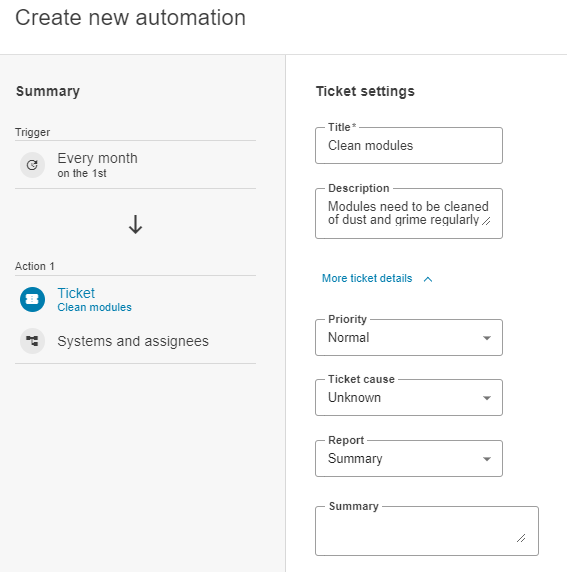
Enter ticket settings
-
-
Select

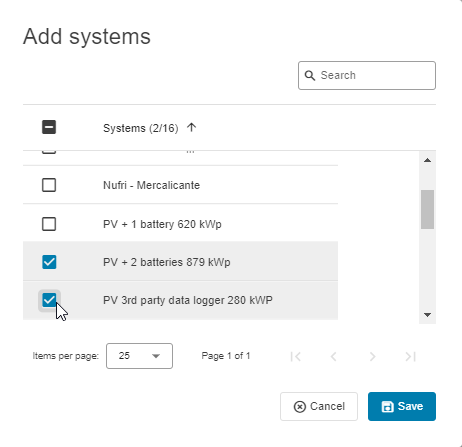
Add systems
-
Add assignees from the dropdown and select

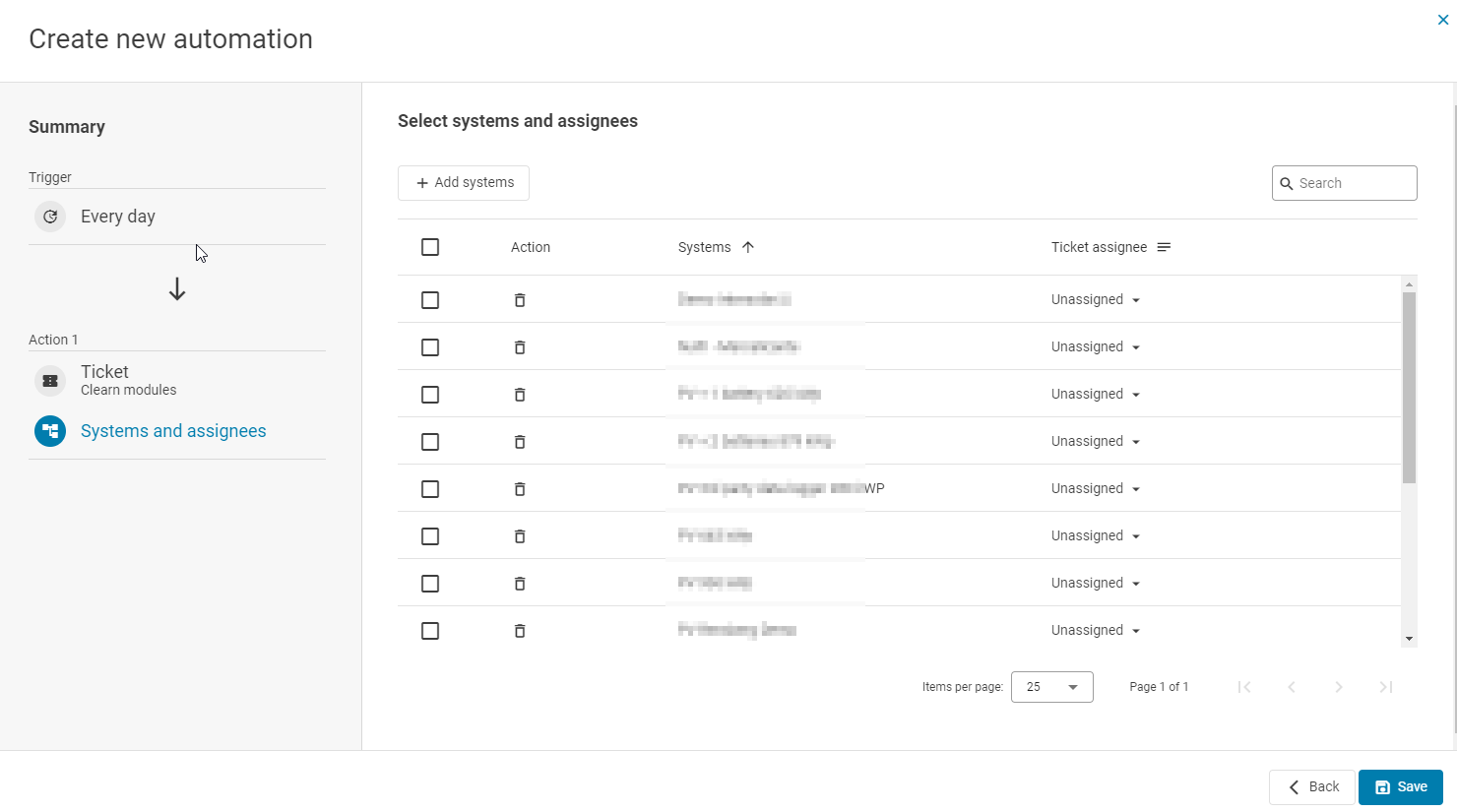
Select systems and assignees -
Give the automation a title and select
-
The automation is now active and visible in the list.
Related articles