.svg)
Last modified:
Set up a HUAWEI FusionSolar API
General tips
-
Serial number: Have the data source (data logger, etc.) serial number on hand. When entering the serial number, pay attention to uppercase and lowercase letters and empty spaces.
-
Name: In most cases, the data source name can be freely selected. For recommendations, see our Naming guideline.
-
Multiple data sources: If possible, use data sources that support the same measuring interval or align the intervals if possible. Otherwise, minor features may not work properly. See also Measuring interval.
-
Automatic device creation: This will automatically create new devices in the system, such as inverters or batteries, as soon as their data is included in a new import file. It is not possible to manually create these devices. In rare exceptional cases, for example, if the devices are already included in another system, you do not need to tick this checkbox.
-
Connection test: If possible, perform a connection test once you have completed the configuration in both VCOM and the data source.
Data loggers only
-
For data loggers, update the firmware to the latest version prior to configuration.
-
For data loggers, any import that uses FTP can also use SFTP. The access data, such as the FTP server address, user name, and password remain identical. Only the port changes from port 21 (FTP) to port 2222 (SFTP).
APIs only
-
If you experience import issues with the API, please contact the respective API provider first.
-
Each day at midnight, VCOM checks for complete data and requests data from the past 7 days. If there are no limitations from the API and the data is available, the gaps will be filled.
Configuration details
|
Protocol |
Pull via HTTPS |
|---|---|
|
File format |
JSON |
|
Measuring interval |
5 min |
|
Transmission interval (pull) |
15 min |
|
User name |
Huawei FusionSolar user name |
|
Station code |
Huawei FusionSolar station code. Includes 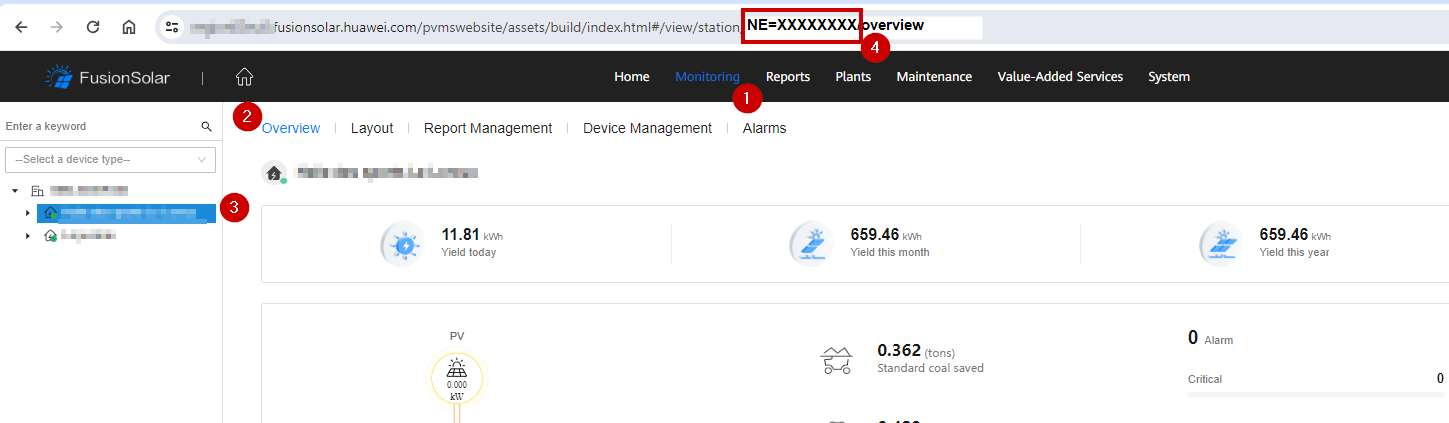
|
Configuration: API
-
Set up a user for NorthBound (API) in the FusionSolar UI. Select System > Company Management > System > Northbound Management.
-
Identify the system codes. These will be equivalent to the system keys when configuring VCOM.
Tips
-
Huawei restricts the number of API requests per user. Therefore, we recommend using a separate user for each system.
-
If a data logger is exchanged, it can take up to 24 hours until live data is imported.
Configuration: VCOM
Prerequisites
-
User group technical customer or higher
Steps
-
At system level , go to


-
Under New source of type, select Huawei FusionSolar API as the data source type from the dropdown.
-
Select Add.
-
Enter the Data logger name and Hardware serial number.
-
Select the actual Measuring interval.
-
The check box Automatic device creation should be ticked.
-
Enter the Huawei User name, System code, Station codes (including
NE=), and Region (server).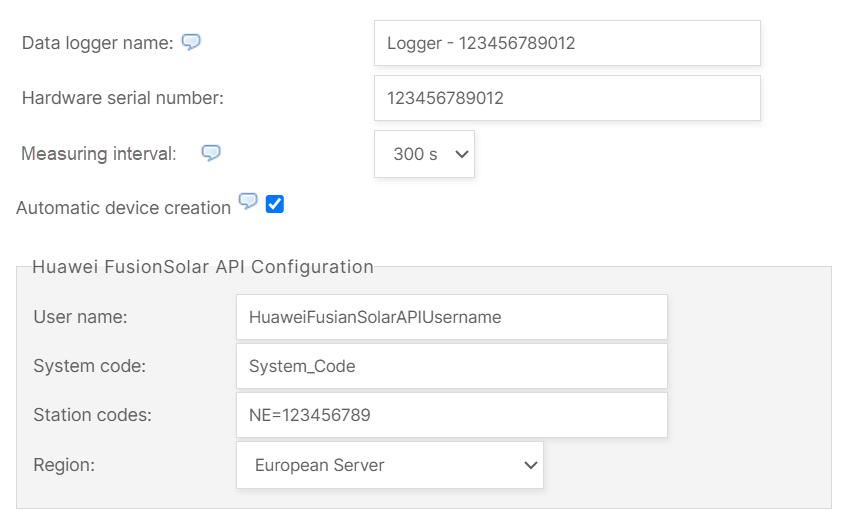
-
Select Register new data logger.
The data source is registered.