.svg)
Last modified:
About user-defined device event alarms
User-defined device event alarms allow you to create alarms based on device events (e.g., manufacturer-defined error codes from your data source or devices connected to that data source). The alarm is triggered when a device event description contains a specific keyword.
Set up user-defined device event alarms
Prerequisites
-
A supported data logger sends device events.
-
At least one device is connected to your system.
Steps
-
At SYSTEM LEVEL , go to

.png?cb=d435b4518396a52d9b529945e33f1e49)
-
Select

-
Give the alarm a Title and Description and assign a Severity.
-
Under Type, select the device type.
-
Enter one or more Keywords that match the name of the event.
-
The keywords must be in English and use exactly the same syntax as provided by the manufacturer.
-
Do not use hyphens to join words. Enter the words as separate keywords.
-
Once you start typing, suggestions will appear based on available events or past events from your devices.
-
Check the Device events portlet in VCOM for the name of the event.
-
-
Press

-
Select a Delay after first occurrence.
-
Tick the check box Sunrise to sunset to trigger alarms only between sunrise and sunset. To provide a tolerance, adjust the slider to the desired number of minutes before sunrise and after sunset.
-
Select

The alarm will appear in the User-defined alarms overview.
Example
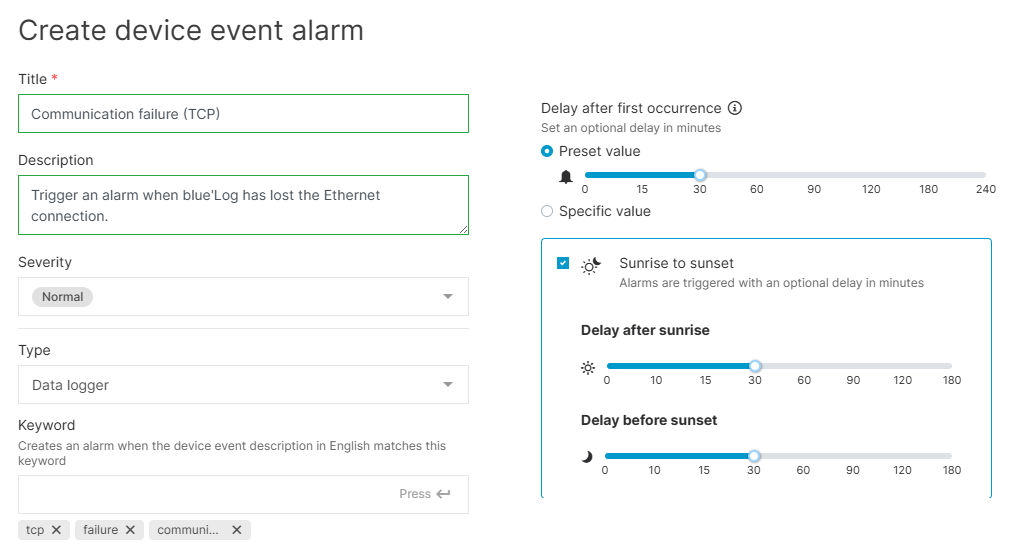
You want to be notified when the blue’Log loses the Ethernet connection. You only want to receive the alarm if the error persists longer than 30 minutes.
Steps
-
Check the Device events portlet in VCOM for the name of the event:
-
Error code:
NOCOMM_TCP -
Event:
Communication failure (TCP).
-
-
Set an alarm as follows:
-
Under Type, select Data logger.
-
Under Keyword, enter
Communication,failure, and/orTCP. -
Press Enter on your keyboard.
-
Set a delay of 30 minutes.
-
The alarm will appear in the User-defined alarms overview.

Create a device event alarm from an event library
You can create a device event alarm based on actual device events that occurred in your system.
Steps
-
Go to
-
Select Create from event library.
-
Select one or more alarms.
-
Select Save.
An alarm will be created for each device event.