
Last modified:
Note
-
Financial forecasts can only be created for assets, not for your whole organization.
-
For production assets in conceptual stage, you can only create a maximum of 10 financial forecasts. See Conceptual stage for production assets.
Creating a financial forecast is done in three steps:
Prerequisites for the whole process
-
There is at least one financial model in your organization. See Financial models.
-
You are the organization owner, an admin, or a member of all domains or the finance domains. See User groups and permissions.
0) Enter basic data
Steps
-
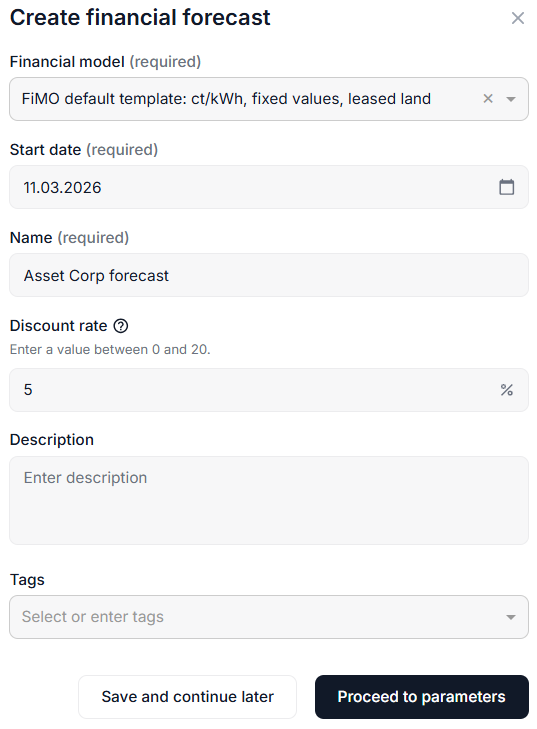
In platform view, navigate to the asset level at which you want to create the financial forecast and select the domain tab

-
Select +New financial forecast.
-
Select a Financial model to be used to generate the forecast. Also see Create a financial model.
-
Give the forecast a Start date and a Name.
-
Enter a value between 0 and 20 for the Discount rate. This represents the time value of money and is used to calculate the net present value (NPV).
-
You can also add a Description if desired. Tags are also optional but highly recommended. See also Tags for optimized search.
-
Select Proceed to parameters.
Further actions
If you select Save and continue later, you can save the basic forecast data. The financial forecast will only become active when all the parameters of the selected financial model are filled in.
1) Enter data for project phases
Steps
-
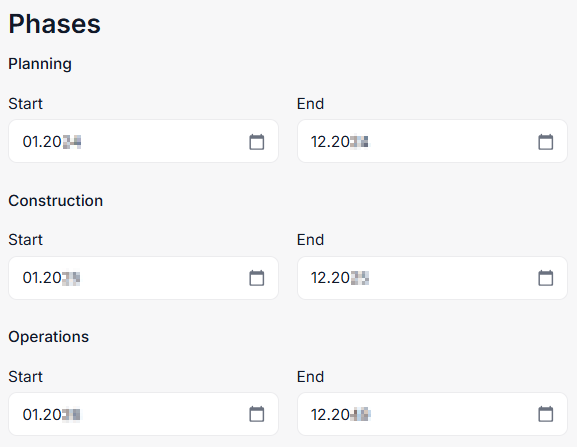
Fill in the start and end months for each of the project phases you created in your financial model.
Note
-
Phases can be active simultaneously, for example if planning and construction overlap. The earliest start and latest end date define the project's lifetime.
-
If one phase of your project takes longer, you can adjust the dates without the need to adjust your financial model.
Example: If the construction phase needs to be extended, for example due to missing parts, documents, certifications, etc., all subsequent phases (operations, decommissioning, etc.) will be automatically moved with the model.
-
Select Next.
2) Enter data for parameters
Steps
-
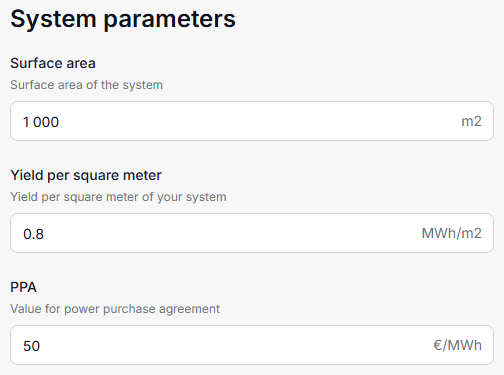
Fill in the parameter values that apply for this asset, respectively, that you forecast for this asset.
Note
Depending on the financial model you selected, there will be different parameters to fill in.
-
Select Next if there are several input groups with parameter details to be filled. These are the same input groups you created when adding parameters to the financial model.
-
Select Finish when you are done with all the parameter inputs.
The financial forecast now appears in the list of financial forecasts and all KPIs are calculated accordingly.
Further actions
-
Download a financial forecast by selecting

