.svg)
Last modified:
Manage financial models that are the base for your forecasts.
A financial model is a mathematical tool that consists of formulas and assumptions to represent a company's operations in the past, present, and forecasted future. Financial models are used for decision-making and financial analysis.
Example
Financial models can be used to:
-
Estimate the costs and project the profits of a proposed new project.
-
Model feed-in tariffs, investment subsidies, current power purchase agreements, or market price structures.
In mc Assetpilot you create all of your organization’s financial models an the organization level. In the administration settings you can view, create, and maintain the financial models for your entire organization.
Financial models and financial forecasts
A financial model is some sort of a basic framework for the financial forecasts you create at the asset levels. The financial model does not contain any specific values, but only variables and placeholder parameters. The real data – which is individually different depending on your asset – is only entered later when you create a financial forecast based on the model. This eliminates the need for multiple spreadsheets for each asset.
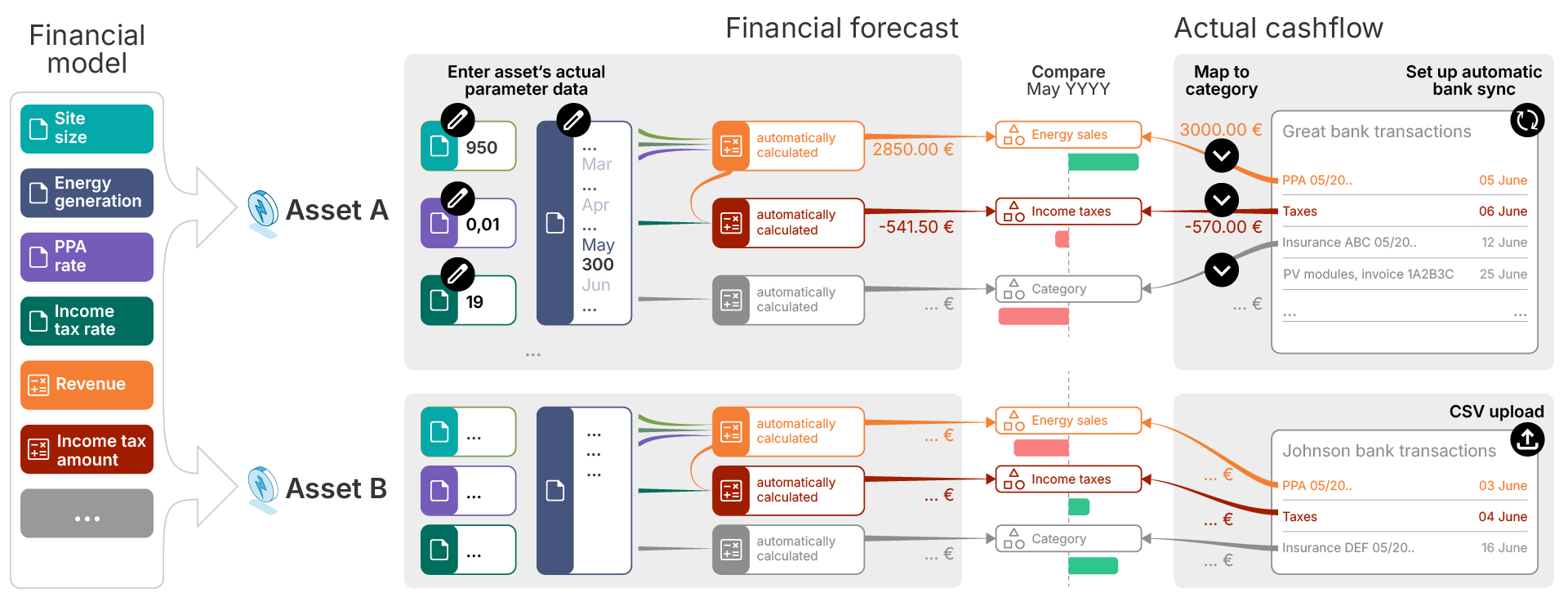
The basic workflow for financial models, financial forecasts, and the comparison with the actual cashflow is as follows: The basis of every financial model are general parameter variables, such as site size, or income tax rate. With these parameters, you build calculations. The results of these calculations are assigned to different categories. When using a financial model for an asset’s forecast you enter actual values for the respective parameters, so that the calculations also result in actual forecast values which you can compare with actual cashflow values in the different categories. See image below.
Views of the financial models domain
Enter the financial models domain by navigating to the administration settings: In platform view, select
Overview
-
In the tab Models, you see a list of all your organization’s financial models.
-
In the tab Templates, you see a list of all financial model templates that were created with the quick setup. You can create financial models from them by selecting Create model.
Expanded view
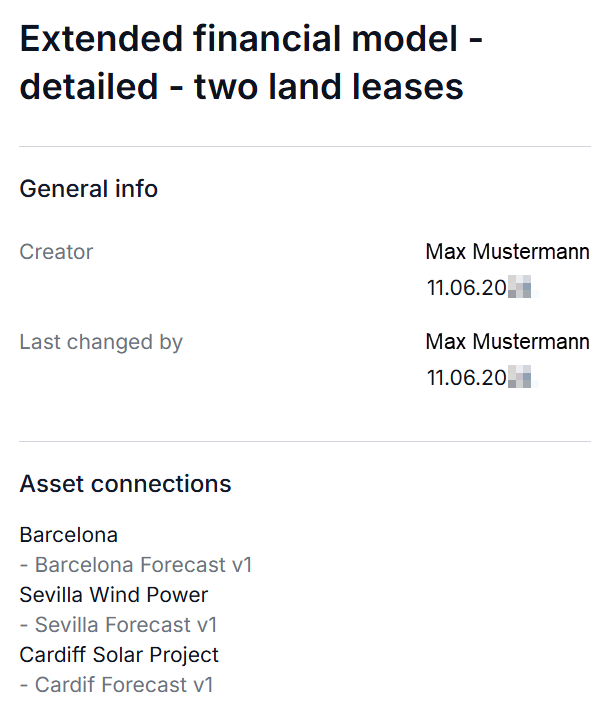
In the tab Models, select a financial model in the overview to display an expanded view of its details in a side panel.
In the area Asset connections, you find the assets and their financial forecasts which use this particular financial model.
Create a financial model
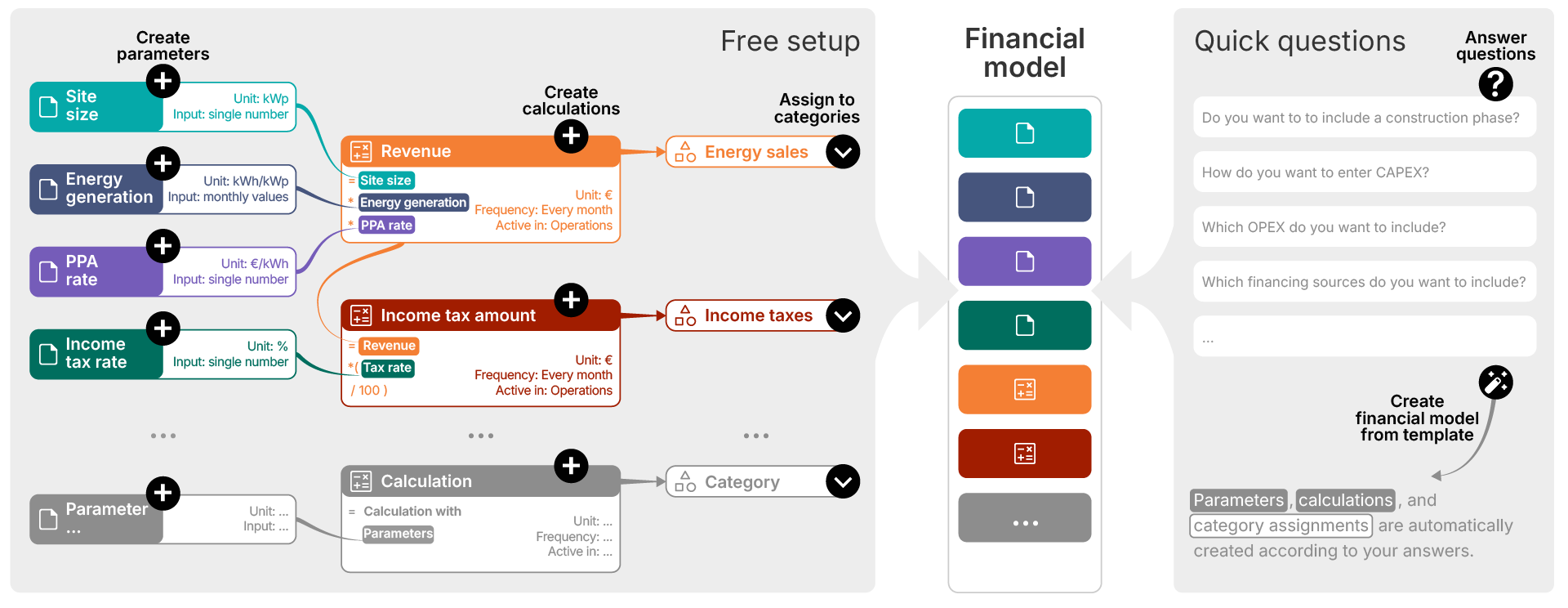
The basis of every financial model are parameter variables and calculations. You can manually create these one-by-one or you can answer a few quick questions. Based on your answers, a financial model template is created from which you can then create a full financial model.
Prerequisites for the whole process
-
You are the organization owner or an admin.
Steps
-
In platform view, select
-
Select + New financial model.
-
In the appearing window, select how you want to create your financial model:
3A) Quick questions
-
Answer some questions regarding your financial model. After that, a template will be created from which you can create a full financial model.
-
Enter the Template name.
-
Select Continue.
-
Go through the steps of the questionnaire.
-
Select Confirm on the Summary page.
A financial model template is added to the list in the tab Templates.
Further actions
-
Create a full financial model from the template by selecting Create model.
3B) Free setup
-
Create all phases, parameters, and calculations manually and define them to your needs. After that, a full financial model is created right away.
-
Enter the financial Model name. You can also add a Description if desired.
-
Enter a Currency.
Caution
Be aware of any secondary currencies that are assigned to the asset levels the financial model should be used at. See also Currencies.
-
Select Proceed to parameters.
-
Continue with the procedure below. See Free setup.
Free setup
1) Define types of project phases
To build your financial model, you must specify types of project phases that represent the phases of a project's financial lifetime. Create phases specific to your organization's standards. You only add specific dates to the phase at a later stage when you create financial forecasts. See Financial forecasts.
Steps
-
In the Phases area, select +New phase.
-
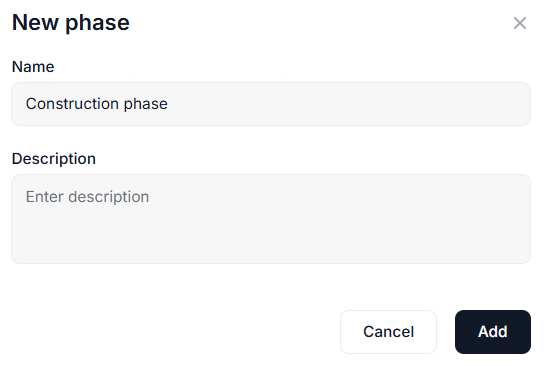
Enter a phase Name and add a Description if desired.
-
Select Add. The phase will be added to your list of phases.
Further actions
-
Add additional phases in the same manner if needed.
-


Note
You can not delete and just partially edit a phase with the badge In use. This indicates that this phase is in use in a calculation. Remove the phase from the calculation first, to delete and fully edit it.
Example
Create the phases:
-
Construction phase
-
Operation phase
2) Define types of parameters
The next step in creating a financial model is to create the parameters you will need. Each parameter you create must have a unique name. The type, parameter group, and unit are also mandatory. You only add specific values to each parameter at a later stage when you create financial forecasts. See Financial forecasts.
Learn more about the different parameter types you can choose from
The parameter type you choose here, will affect the input field(s) that appear later when entering specific values to the parameters while creating a financial forecast.
|
Parameter type |
Description |
📗 Examples |
|---|---|---|
|
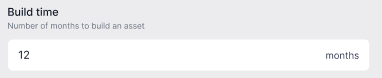
Number |
When your financial forecast is created, the parameter values will be represented by a single value for the asset's entire lifetime. |
|
|
||
|
Monthly values for one year |
When your financial forecast is created, the parameter values will be represented in months over one year. For changes that take place over a year and which you want to view in months. |
|

|
||
|
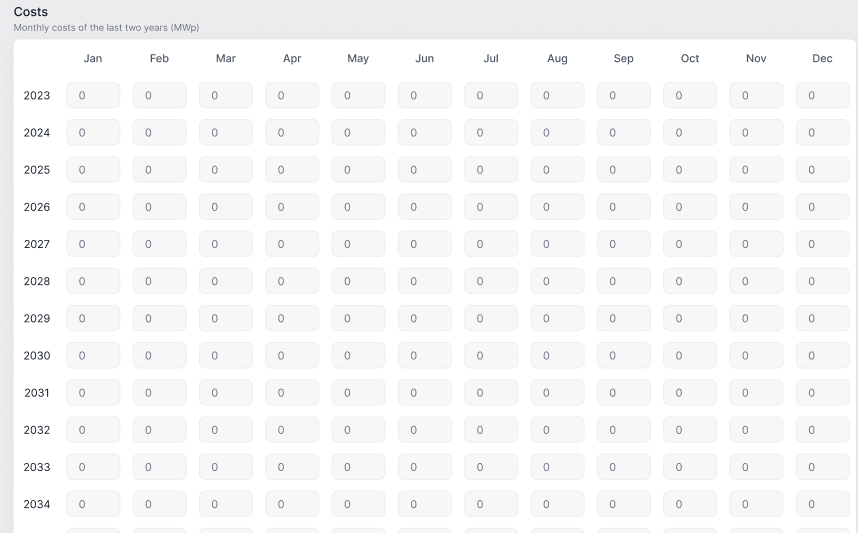
Monthly values for lifetime |
When your fiinancial forecast is created, the parameter values will be represented in months throughout the entire lifetime (the default value is 30 years). For changes that take place throughout an entire lifetime and which you want to view in months. |
|
|
||
|
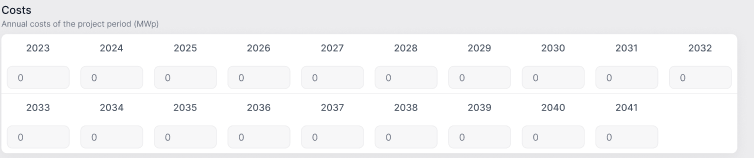
Annual values for lifetime |
When your financial forecast is created, the parameter values will be represented in years throughout the entire lifetime (the default value is 30 years). For changes that take place throughout an entire lifetime and which you want to view in years. |
|
|
||
Steps
-
In the Parameters area, select +New parameter.
-
Enter a parameter Name and add a Description if desired.
-
Select parameter Type, Input group, and enter a Unit. To learn more about these data fields, see descriptions above.
-
Select Add. The parameter will be added to your list of parameters.
Further actions
-
Add additional parameters in the same manner if needed.
-
Note
You can not delete and just partially edit a parameter with the badge In use. This indicates that this parameter is in use in a calculation. Remove the parameter from the calculation first, to delete and fully edit it.
Example
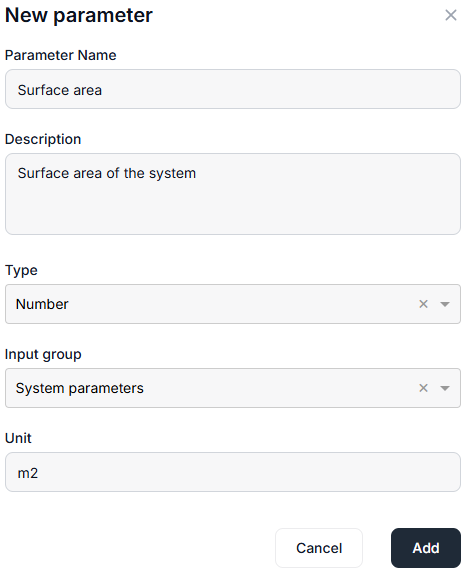
Create the parameters:
-
Surface area: m2
-
Generated energy per square meter: MWh/m2
-
Power purchase agreement (PPA): €/MWh
3) Define intermediate calculation formulas
An intermediate calculation is a formula that may be used as a basis for the other calculations, but is not assigned to a cashflow category, and as such is not part of the forecast results on its own. It is an optional step in creating a calculation formula and can be later used as a variable in the latter.
Steps
-
In the Intermediate calculations area, select +New intermediate calculation.
-
Enter an intermediate calculation Name and add a Description if desired.
-
For the Calculation rule, enter a formula.
-
Type a Hashtag
#to display the available parameters you created before. -
Use the following standard operators:
-
Plus
+ -
Minus
- -
Multiplication
* -
Division
/ -
Round parentheses
()may also be used
-
-
-
Select Add. The intermediate calculation will be added to your list of intermediate calculations.
Example
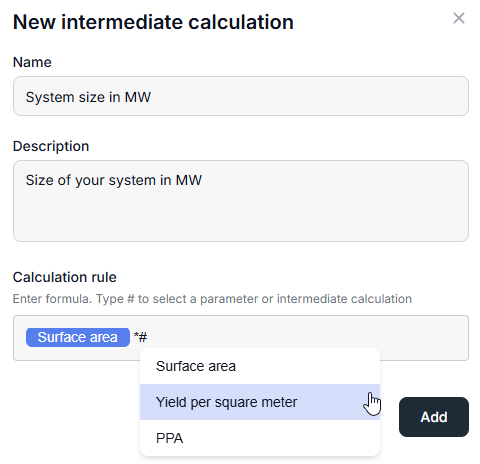
Define the intermediate calculation formula:
-
System size in MW =
Surface area * Generated energy per square meter
Further actions
-
Add additional intermediate calculations in the same manner if needed.
-
4) Define calculation formulas
Calculations are the final formulas that will be used to create the financial model and financial forecasts. They are assigned to a cashflow category and can be carried out in different project phases.
Steps
-
In the Calculations area, select +New calculation.
-
Enter a calculation Name and add a Description if desired.
-
For the Calculation rule, enter a formula.
-
Type a Hashtag
#to display the available parameters and intermediate calculations you created before. -
Use the following standard operators:
-
Plus
+ -
Minus
- -
Multiplication
* -
Division
/ -
Round parentheses
()may also be used
-
-
-
Select a cashflow Category. The dropdown lists the categories to which bank transactions have been mapped, for example energy sales, capital expenditures (CAPEX), etc.
-
For the Frequency select an interval at which the calculation should be performed.
-
This will depend on the type of calculation you are creating. In the example, we are calculating monthly revenue.
-
If you carry out a calculation Once, it will be executed at the start date of the selected project phase.
-
Example
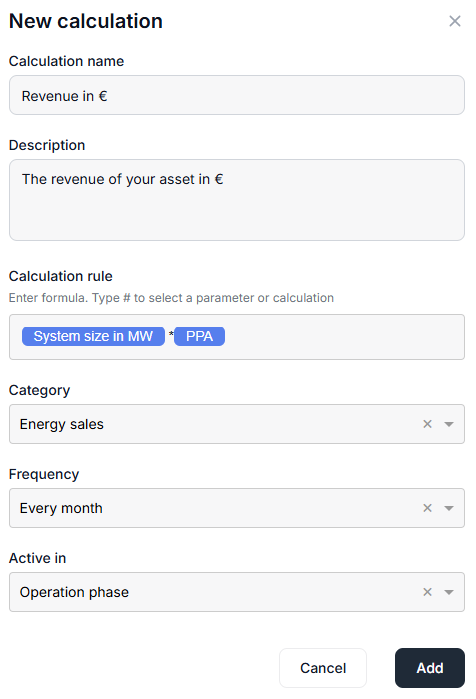
Define the calculation formula:
-
Revenue in € in the cashflow category Energy sales with a monthly calculation frequency while in operation phase
-
Select the phase in which you want the calculation to be Active in. The calculation will only consider the period between the start and end dates of the phase. In the example, it is active in the operation phase, in other words, when the asset is up and running and generating revenue.
-
Select Add. The calculation will be added to your list of calculations.
Further actions
-
Add additional calculations in the same manner if needed.
-
5) Finish financial modelling
Steps
When you are done with defining all of the above, select Finish in the upper right corner to finish your financial model.
The financial model will be added to your list of financial models.
Note
If your new financial model does not appear on your dashboard, try reloading the page in your browser or signing out and back in again.
Further actions
-
You can now create financial forecasts for your asset using the model you created. See Financial forecasts.
Duplicate a financial model
You can duplicate a financial model if you want to change specific parameters.
Example
Duplicate a financial model if you want to use an existing financial model in a financial forecast for an asset with a different currency. Therefore, change all currency settings in the duplicated financial model.
Steps
-
In platform view, select
-
For the respective model, select
-
The financial model is duplicated in the list.
-
For the duplicated financial model, select
You have duplicated a financial model now and only adjusted parts of it.
Delete a financial model
Note
You can not delete financial models that are in use in a financial forecast.
Steps
-
In platform view, select
-
For the respective model, select
The financial model and all its data is now deleted.