.svg)
Last modified:
Manage forecasts to track the progress of your assets according to your financial models.
You can apply financial forecasts to each asset level separately. At each level, the desired forecast model must be active.
Financial models and financial forecasts
A financial model is some sort of a basic framework for the financial forecasts you create at the asset levels. The financial model does not contain any specific values, but only variables and placeholder parameters. The real data – which is individually different depending on your asset – is only entered later when you create a financial forecast based on the model. This eliminates the need for multiple spreadsheets for each asset.
The basic workflow for financial models, financial forecasts, and the comparison with the actual cashflow is as follows: The basis of every financial model are general parameter variables, such as site size, or income tax rate. With these parameters, you build calculations. The results of these calculations are assigned to different categories. When using a financial model for an asset’s forecast you enter actual values for the respective parameters, so that the calculations also result in actual forecast values which you can compare with actual cashflow values in the different categories. See image below.
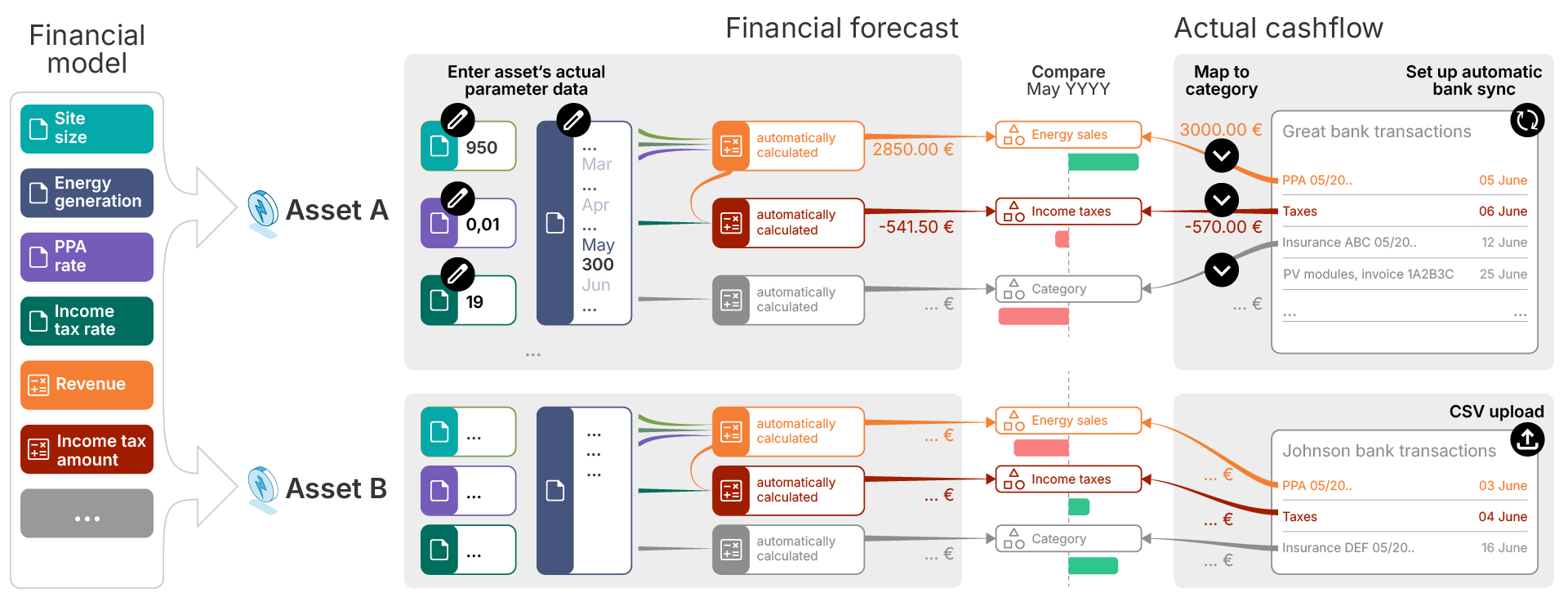
Views of the financial forecasts domain
Enter the financial forecasts domain in platform view, by selecting the dedicated domain tab for 
The domain is divided into two tabs:
-
Manage tab: Manage individual financial forecasts and enter different views.
-
Compare tab: Compare multiple forecasts with each other.
Views in the Manage tab
Display your financial forecasts in three different views: overview, quick view, and detailed view.
Overview
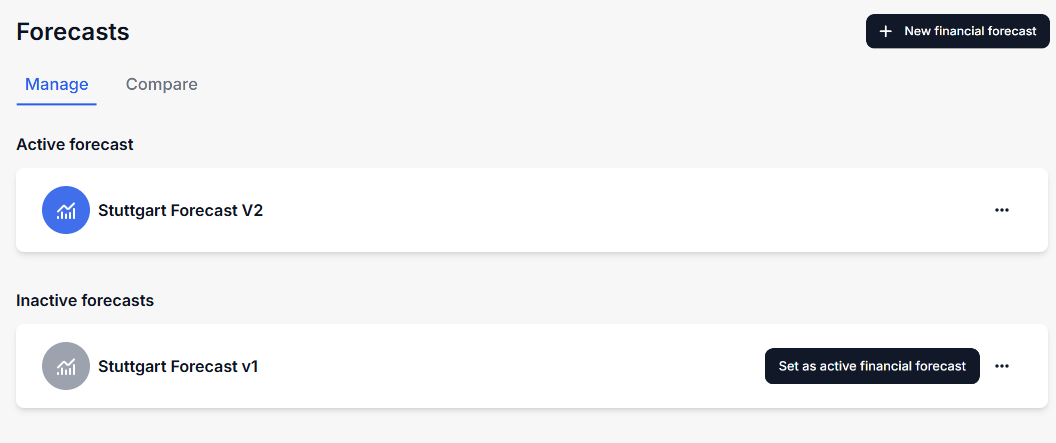
In the overview, you see a list of all financial forecasts divided into the Active financial forecast and possibly multiple Inactive financial forecasts. There can only be one active financial forecast per asset level.
Note
Financial forecasts are not consolidated to higher asset levels. You must navigate to a specific asset to view and manage its forecasts.
Quick view
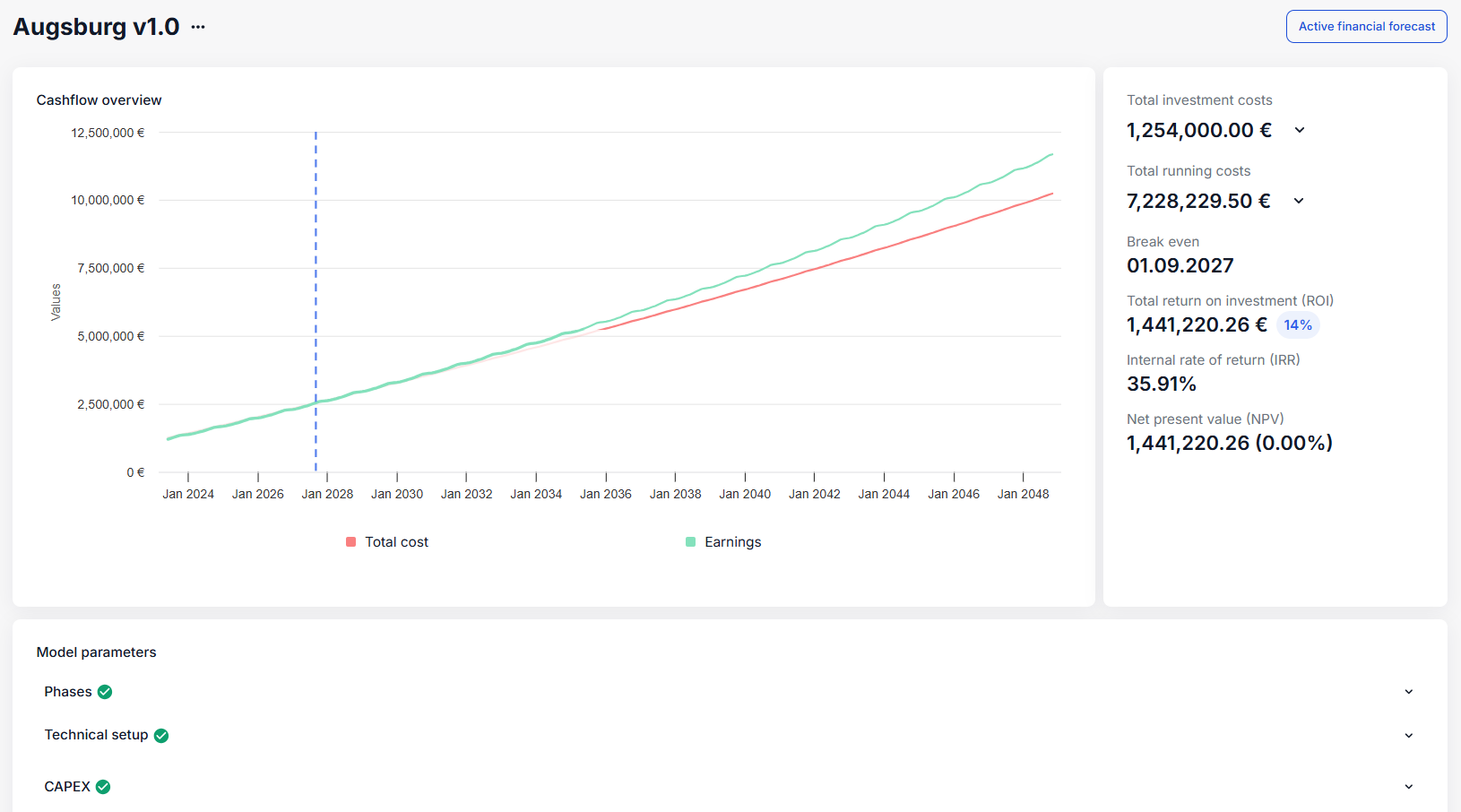
Select a financial forecast to display a quick view of its details in a side panel with reduced information. When a forecast is completed, the following key performance indicators (KPIs) are calculated and displayed:
-
Total investment costs
-
Total running costs
-
Break-even date
-
Total return on investment (ROI)
-
Internal rate of return (IRR)
-
Net present value (NPV)
Detailed view
Select Go to detailed view in the quick view to open the financial forecast’s details on a separate page. There, you also see the parameters of the general financial model and their specific values for the selected financial forecast in the area Model parameters. A 

Note
Currently, the financial forecast will only display periods rather than commas (for example 25.0 vs. 25,0).
Compare financial forecasts
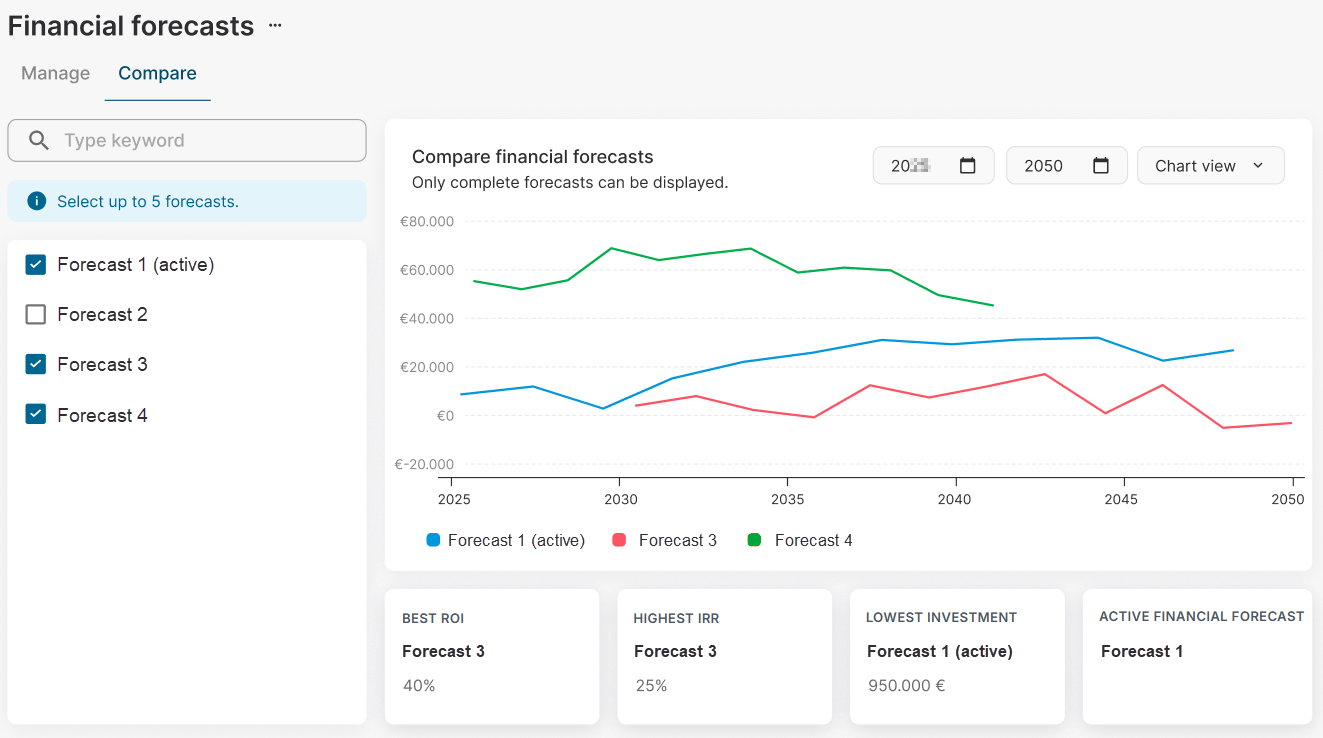
Display financial forecasts in comparison to each other in the Compare tab.
Prerequisites
-
The financial forecasts you want to compare must be complete, which means no parameters are missing.
Steps
-
Navigate to the Asset level of your financial forecast and select the domain tab
-
Select the financial forecasts you want to compare from the list on the left. You can select up to 5 forecasts.
All forecasts are immediately displayed in the diagram. The KPIs return on investment (ROI), internal rate of return (IRR), and investment costs are compared and the forecast with the best value is listed.
Further actions
-
Change the start and end date of the comparison period in the respective dropdowns.
-
Change the view from hart view to table view in the respective dropdown.
Create a financial forecast
Note
-
Financial forecasts can only be created for assets, not for your whole organization.
-
For production assets in conceptual stage, you can only create a maximum of 10 financial forecasts. See Conceptual stage for production assets.
Prerequisites for the whole process
-
There is at least one financial model in your organization. See Financial models.
-
You are the organization owner, an admin, or a member of all domains or the finance domains. See User groups and permissions.
0) Enter basic data
Steps
-
In platform view, navigate to the asset level at which you want to create the financial forecast and select the domain tab
-
Select +New financial forecast.
-
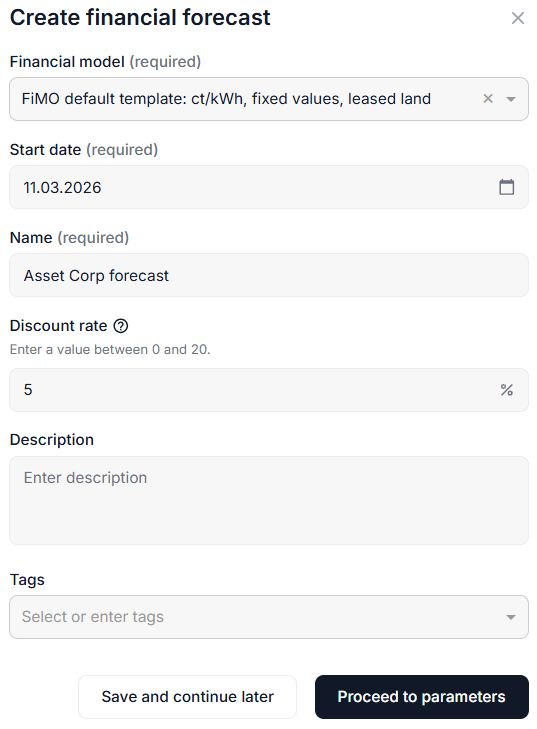
Select a Financial model to be used to generate the forecast. Also see Create a financial model.
-
Give the forecast a Start date and a Name.
-
Enter a value between 0 and 20 for the Discount rate. This represents the time value of money and is used to calculate the net present value (NPV).
-
You can also add a Description if desired. Tags are also optional but highly recommended. See also Tags for optimized search.
-
Select Proceed to parameters.
Further actions
If you select Save and continue later, you can save the basic forecast data. The financial forecast will only become active when all the parameters of the selected financial model are filled in.
1) Enter data for project phases
Steps
-
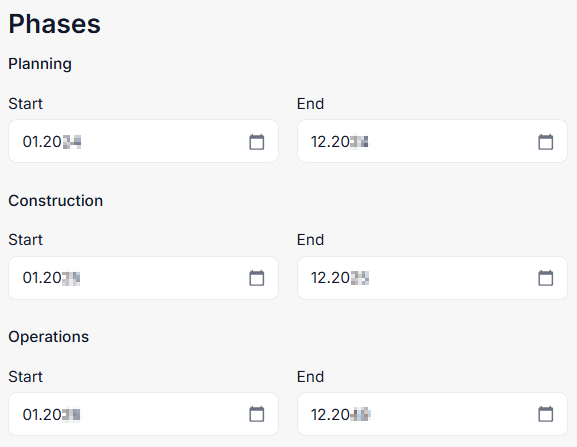
Fill in the start and end months for each of the project phases you created in your financial model.
Note
-
Phases can be active simultaneously, for example if planning and construction overlap. The earliest start and latest end date define the project's lifetime.
-
If one phase of your project takes longer, you can adjust the dates without the need to adjust your financial model.
Example: If the construction phase needs to be extended, for example due to missing parts, documents, certifications, etc., all subsequent phases (operations, decommissioning, etc.) will be automatically moved with the model.
-
Select Next.
2) Enter data for parameters
Steps
-
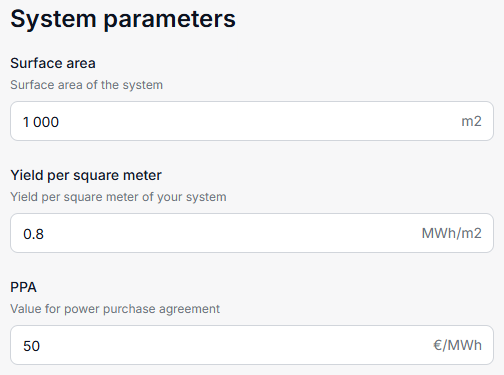
Fill in the parameter values that apply for this asset, respectively, that you forecast for this asset.
Note
Depending on the financial model you selected, there will be different parameters to fill in.
-
Select Next if there are several input groups with parameter details to be filled. These are the same input groups you created when adding parameters to the financial model.
-
Select Finish when you are done with all the parameter inputs.
The financial forecast now appears in the list of financial forecasts and all KPIs are calculated accordingly.
Further actions
-
Download a financial forecast by selecting


Manage existing financial forecasts
Set an active financial forecast
The active financial forecast is the basis for comparison with the actual cashflow. If you have more than one forecast on your asset level, you can change the active financial forecast.
Notes
-
There can only be one active financial forecast on each asset level.
-
Only completed financial forecasts can be set as active. For incomplete forecasts, this function will be enabled.
Steps
-
Navigate to the Asset level of your financial forecast and select the domain tab
-
For the forecast that should be active, select Set as active financial forecast.
The financial forecast is active now. The active forecast will be taken as basis for the comparison with the actual cashflow.
Duplicate a financial forecast
Example
Duplicate a financial forecast if you only want to change one specific parameter, for example, different feed-in remuneration or increased maintenance costs.
Steps
-
Navigate to the Asset level of your financial forecast and select the domain tab
-
For the forecast you want to duplicate, select

-
The financial forecast is duplicated in the forecasts list.
-
For the new forecast, select

Further actions
-
Change the active financial forecast if you want your duplicated forecast to be displayed and to be the basis for all cashflow comparisons. See Set an active financial forecast.
Edit a financial forecast
Note
You can not 
Steps
-
Navigate to the Asset level of your financial forecast and select the domain tab
-
You have two options to edit the desired forecast:
-
In the forecasts list and for the forecast you want to duplicate, select

-
In the financial forecast’s detailed view, you can also edit the parameters. Scroll to the area Model parameters and select
-
Delete a financial forecast
Note
You can not delete the active financial forecast.
Steps
-
Navigate to the asset level of your financial forecast and select the domain tab
-
For the financial forecast you want to delete, select

The financial forecast is now permanently deleted from the list of forecasts.
Monitor financial forecasts on the dashboard
To help you work efficiently, financial forecasts are evaluated in the following widgets on the dashboard: