.svg)
Last modified:
Manage other users: add a new user to VCOM
Caution
-
Be aware of the difference between users and contacts.
-
According to the General Data Protection Regulation (GDPR), the storage of personal data requires the consent of the person concerned.
-
User group administrator
-
Manager role or higher in mc Cloud. See mc Cloud User roles and permissions.
-
You have consent to store personal data of the data subject.
Add a new user in mc Cloud
Steps
-
Go to mc Cloud. You have three options for this:
-
Option 1: In VCOM at Portfolio level , select
.png?cb=12102cf9ad8b8bc5c973d4c89009819a)


-
Option 2: In VCOM, select

-
Option 3: Go directly to mc Cloud in your browser.
-
-
Set up the user in mc Cloud. See Set up a new user.
-
Be sure to select the application VCOM to assign it to the user.
-
The user:
-
Will be visible in the user lists in mc Cloud and VCOM.
-
Will receive an account activation email from mc Cloud and must follow the instructions in the email.
Add user information in VCOM
Steps
-
In VCOM at Portfolio level , select
-
Select


-
A window appears.
-
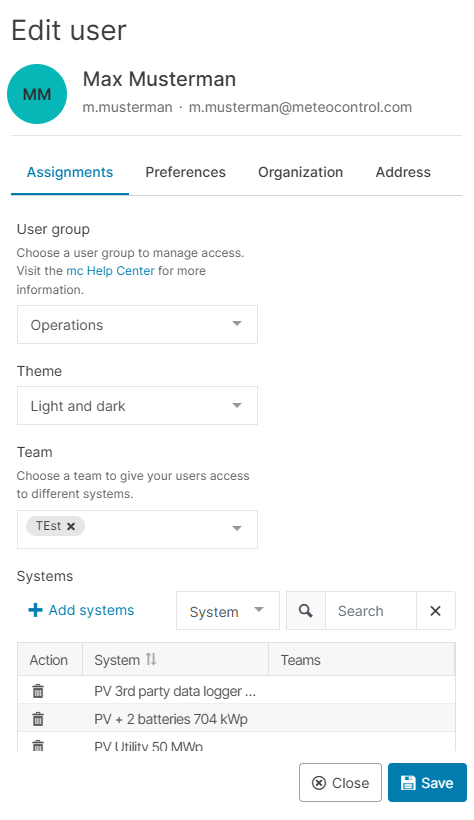
Assignments tab:
-
User group: From the dropdown, assign a VCOM User group to the user to grant specific VCOM permissions.
-
Theme: Assign the user the option of either light or dark mode, or assign a user-defined theme if applicable.
-
Team: Select a Team with predefined system access from the dropdown menu.
-
Systems: Select Add systems. Tick the check boxes for the systems you want the user to access.
-
Select

-
-
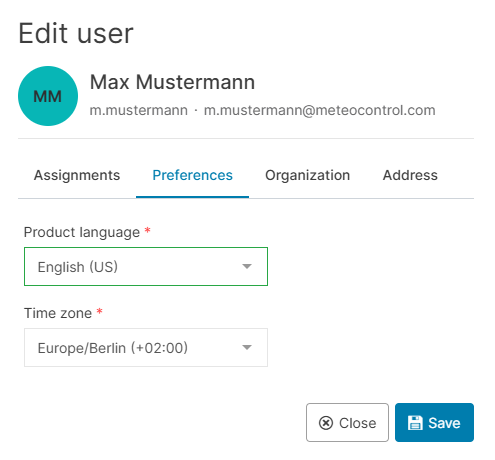
Preferences tab:
-
Product language: Select the user’s default language in VCOM.
-
Time zone: Select the user’s time zone.
-
Select
-
-
Organization tab:
-
Add the user’s title, job title, company, phone number, mobile number, and tax number.
-
Select
-
-
Address tab:
-
Enter details about the user’s address.
-
Select
-
The user’s details are now updated in the user list.
-

-
-

Manage your own account: activate your account
See the mc Cloud documentation: Set up portal and sign in.