.svg)
Last modified:
Caution
Be aware of the difference between users and contacts.
New users for VCOM must be initially created in mc Cloud and assigned to VCOM. Once created and assigned, the user also appears in VCOM’s user management, and application-specific details such as the user group, team, and systems are assigned in VCOM.
Prerequisites
-
Manager role or higher in mc Cloud. See mc Cloud User roles and permissions.
-
User group administrator
1) Create a new user in mc Cloud
Steps
-
Go to mc Cloud. You have three options for this:
-
Option 1: In VCOM at Portfolio level , select
.png?cb=12102cf9ad8b8bc5c973d4c89009819a)


-
Option 2: In VCOM, select

-
Option 3: Go directly to mc Cloud in your browser.
-
-
Create the new user in mc Cloud. See Creating new users.
-
Be sure to select the application VCOM to assign it to the user.
-
The user:
-
Will be visible in the user lists in mc Cloud and VCOM.
-
Will receive an account activation email from mc Cloud and must follow the instructions in the email.
2) Add user information in VCOM
Steps
-
In VCOM at Portfolio level , select
-
Select


-
A window appears.
-
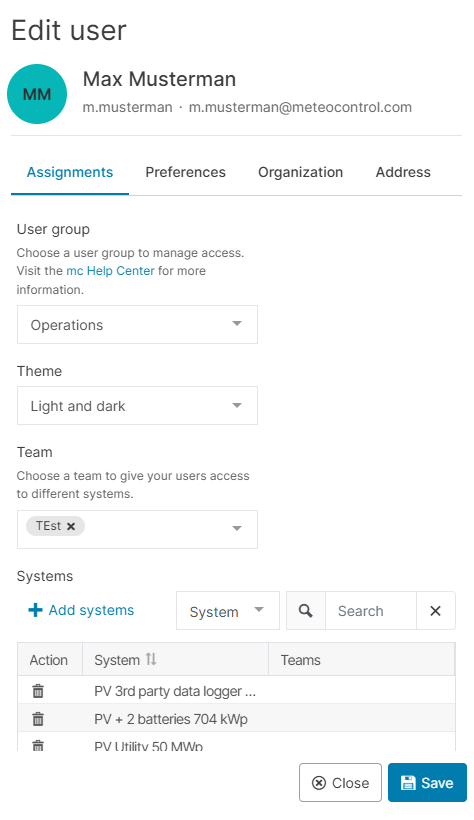
Assignments tab:
-
User group: From the dropdown, assign a VCOM User group to the user to grant specific VCOM permissions.
-
Theme: Assign the user the option of either light or dark mode, or assign a user-defined theme if applicable.
-
Team: Select a Team with predefined system access from the dropdown menu.
-
Systems: Select Add systems. Tick the check boxes for the systems you want the user to access.
-
Select

-
-
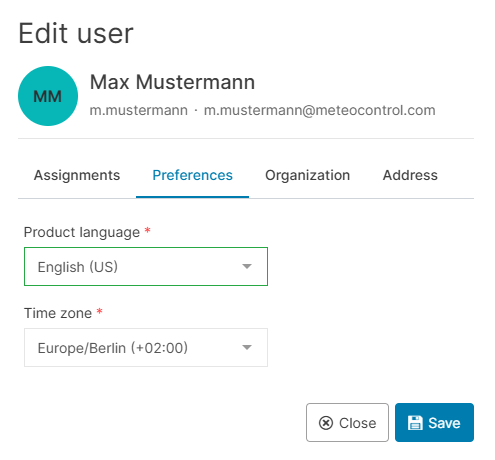
Preferences tab:
-
Product language: Select the user’s default language in VCOM.
-
Time zone: Select the user’s time zone.
-
Select
-
-
Organization tab:
-
Add the user’s title, job title, company, phone number, mobile number, and tax number.
-
Select
-
-
Address tab:
-
Enter details about the user’s address.
-
Select
-
The user’s details are now updated in the user list.
Further actions
-

-
-

-
Configure the user's dashboards: Impersonate the user to configure their dashboards before they activate their account and sign in for the first time. See Impersonate a pending user (mc Cloud documentation).