.svg)
Last modified:
After adding a subsystem with battery PCSs during system setup, assign the respective battery devices that are connected to these PCSs in order to have an adequate representation of your system setup. Which devices are available depends on the individual hierarchy of your battery.
Prerequisites
-
You have added a battery subsystem to your system. See Add a battery subsystem.
-
The technology VCOM Battery Monitoring is activated. See Activate VCOM Battery Monitoring.
-
User group technical customer or higher
Steps
-
At System level , go to


-
In the overview table, you see all the PCSs you specified when adding a battery subsystem.
-
Select

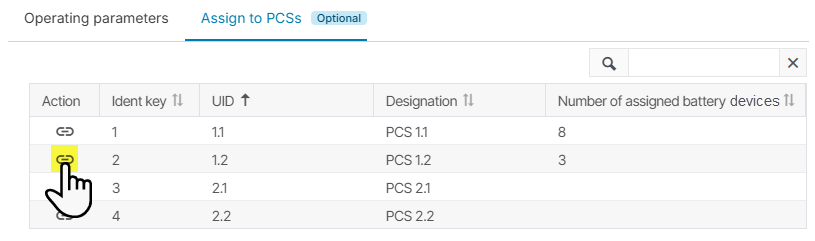
Select Manage assignments to assign battery devices to a PCS -
In the appearing pop-up, you may see a table with all Battery devices you already assigned to this PCS.
-
Select

-
In the newly appearing pop-up, you see a table with all Battery devices still available for assignment. Devices you may already assigned to this PCS are not listed anymore. Also, find the additional information on which devices are already Assigned to another PCS. It is possible to assign one device to multiple PCSs.
-
Tick the checkboxes for all battery devices that are connected to the PCS you are managing.
-
Select
-
You return to the table of already assigned devices for this PCS, including the new assignments now.
-
Select

The battery devices are now assigned, and their total number appears in the column Number of assigned battery devices in the overview of all PCSs.
Further actions
-
Manage the assignments for the other PCSs in the same manner.
-
Select
