.svg)
Last modified:
Activate VCOM Battery Monitoring to access comprehensive battery-related features and functionalities. See VCOM Battery Monitoring.
Notes
-
The activation of Battery Monitoring does not depend on whether you already added a battery subsystem for your uninterruptible power supply (UPS, < 30 kWh).
-
If your VCOM contract is newer than July 2024, you can activate Battery Monitoring on your own by following the steps below.
-
Trials of Battery Monitoring are available on request. Please contact your meteocontrol sales agent or our sales team at sales@meteocontrol.com.
Prerequisites
-
User group administrator
Steps
-
At Portfolio level , select
.png?cb=12102cf9ad8b8bc5c973d4c89009819a)

-
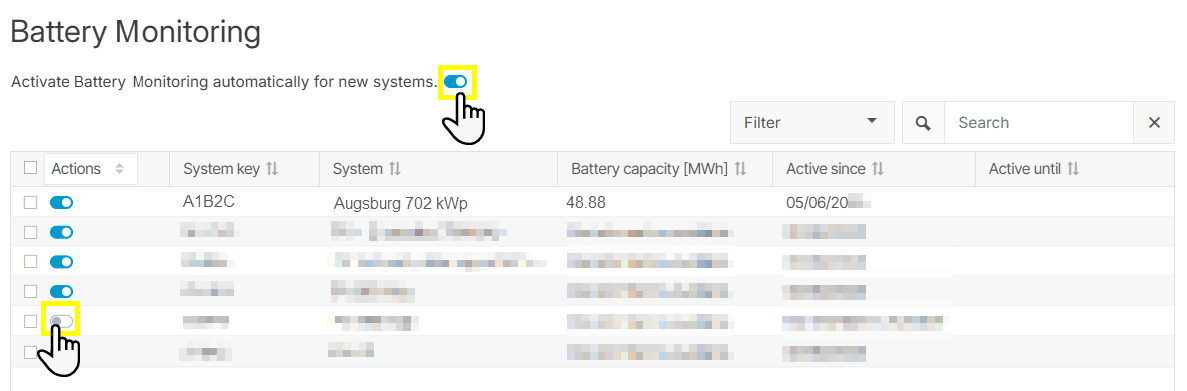
Activate Battery Monitoring:
-
For a single system: Select the toggle

-
For multiple systems: Tick the check boxes for the respective systems and activate Battery Monitoring with the Activate command from the Actions dropdown menu.
-
For all systems in your portfolio: Tick the check box in the table header. All systems in the list will be selected. Activate Battery Monitoring with the Activate command from the Actions dropdown menu.
-
-
Confirm that the activation of the technology incurs additional costs.
Battery Monitoring is now active for the selected systems.
Further actions
-
Deactivate Battery Monitoring: Select the toggle

-
Activate Battery Monitoring by default: Select the toggle