
Last modified:
Either create single tasks or import a task list via CSV import.
Note
-
Tasks can only be created for assets, not for your whole organization.
-
For production assets in conceptual stage, you can only create a maximum of 10 tasks. See Conceptual stage for production assets.
Tip
Save time by having recurring tasks created automatically. See Automations.
Create a single task
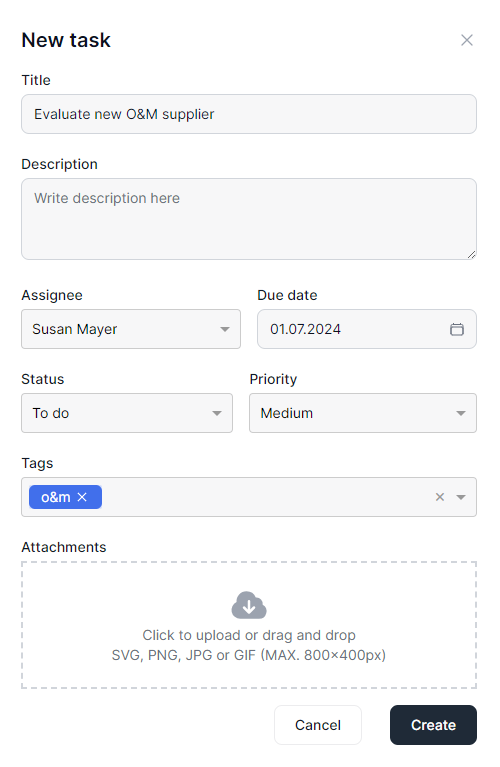
You can assign work and set deadlines for yourself and other users. You can classify tasks by status and priority, and add tags and attachments.
Prerequisites
-
You belong to any other user group than viewer.
-
An organizational structure with assets already exists.
Steps
-
Select an asset level from the side bar.
-
Select the domain tab

-
Select +New task.
-
Enter a descriptive task Title and add a Description if desired.
-
Select an Assignee (a user in your organization who should carry out the task), a Due date, Status, and Priority. Add Attachments if desired. Tags are also optional but highly recommended. See also Tags for optimized search.
-
Select Create.
The assignee now receives a notification email, and the task appears in the
Import multiple tasks via CSV file
Prerequisites
-
You belong to any other user group than viewer.
-
An organizational structure with assets already exists.
Steps
-
Select an asset level from the side bar
-
Select the domain tab
-
Select

-
Select the column of your CSV file to match the missing system column.
-
Select Next.
-
A table with all the matching data is displayed.
-
Review the table.
-
Select Finish.
-
All imported tasks appear in the tasks list with the corresponding assignees:
-
The system matches the assignees in your CSV file with the corresponding users of your organization (via matching mail addresses). The tasks will be assigned to these users automatically.
-
If your file does not contain information about assignees, then you as the file importer will be assigned to all tasks. You can then assign users manually by selecting


Create a task from a contract’s obligation
See Create a task from a contract’s obligation.