
Last modified:
Save time by quickly and easily automating your workflows.
About automations
With automations, you can configure rules to automatically create tasks or reports based on predefined conditions. This helps you to reduce manual effort and save time.
Note
Automations are not available for assets in conceptual stage.
Types of automations
Report automation
A report automations creates a report for a specific organization level based on a report template and according to a recurring schedule.
Task automation
A task automation creates a task for a specific asset and a specific assignee according to a recurring schedule.
Statuses of automations

Active
Active automations continue to create items regularly at the specified frequency.

Inactive
Inactive automations no longer automatically create items.
-
Automatic deactivation: An automation is automatically set to inactive as soon as its end date has passed. If you want to reactivate it, you must edit the end date first.
-
Manual deactivation: You can manually deactivate an automation at any time in the overview. If its end date has not passed yet, this will not be overwritten by the manual deactivation and you can reactivate the automation at any time with the end date still valid.
Overview of the Automations domain
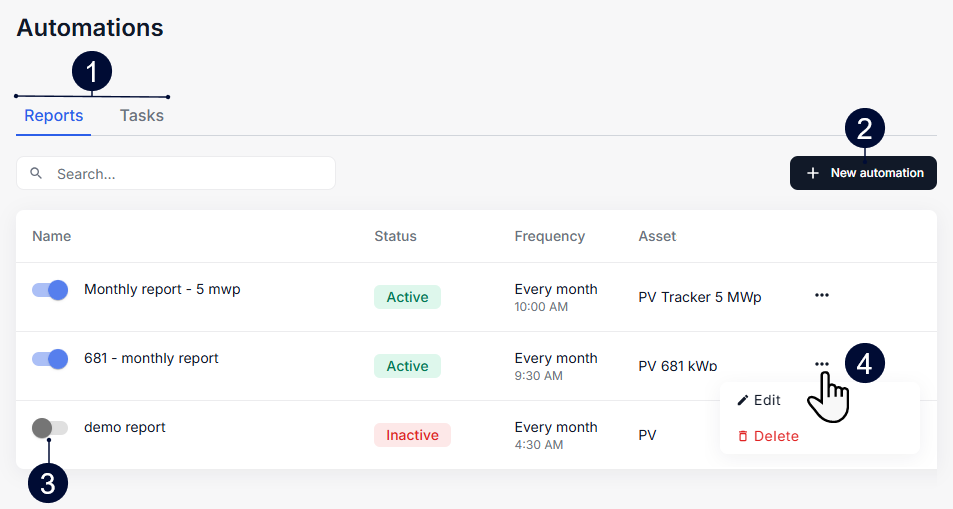
Enter the Automations domain by navigating to the administration settings: In platform view, select
|
Name |
Details |
|
|---|---|---|
|
1 |
Reports, and Tasks tabs |
All your portfolio’s automations are grouped by their type into different tabs. Select a tab to see the respective automation type. See also Types of automations. |
|
2 |
+ New automation |
Create a new automation. |
|
3 |
Activate or Deactivate an automation |
Change the status of an automation. See Statuses of automations. |
|
4 |
|
|


Create an automation for reports
Prerequisites
-
You are the organization owner or an admin.
-
At least one report template already exists for the organization level you want to create the automation for. See also Create a report template.
Steps
-
In platform view, select
-
Select + New automation.
-
A window appears guiding you through multiple steps.
-
In the General tab, do the following:
-
As Automation type, select Report.
-
Give your automation an Automation name.
-
Add a Description if desired.
-
Select Continue.
-
-
In the Configuration tab, do the following:
-
Select the Asset you want to report about. All sub-assets are included.
-
Select the Report template you want to use to create the report. Only report templates created for that asset level are listed. The name of the report template will also be the name of the automatically created reports.
-
By selecting the Frequency, you determine how often the report will be created automatically.
-
Select Continue.
-
-
In the Frequency tab, do the following:
-
Select the Time at which the report should be created each time.
-
Select the Start date and End date for the period during which the report should be created on a regular basis. Leave the End date blank if you do not want the automation to end.
-
Select Continue.
-
-
Check all configurations for your automation in the Summary tab.
-
Select Create.
The report automation is now added to the list of automations in the Reports tab. It has the status Active.
Create an automation for tasks
Prerequisites
-
You are the organization owner or an admin.
Steps
-
In platform view, select
-
Select + New automation.
-
A window appears guiding you through multiple steps.
-
In the General tab, do the following:
-
As Automation type, select Task.
-
Give your automation an Automation name.
-
Add a Description if desired.
-
Select Continue.
-
-
In the Configuration tab, do the following:
-
Enter a Task name for the tasks being created with this automation.
-
Enter a Task description if desired.
-
Select the Priority you want to assign to the tasks.
-
With Due in, specify how many days the assignee has to complete the task after it has been created.
-
Select Continue.
-
-
In the Frequency tab, do the following:
-
Under Every x Days/Weeks/Months, specify how often the task should be created.
-
Select the Time at which the task should be created each time.
-
Select the Start date and End date for the period during which the task should be created on a regular basis. Leave the End date blank if you do not want the automation to end.
-
Select Continue.
-
-
In the Summary tab, do the following:
-
Check all configurations for your automation.
-
Select the Asset for which you want to create the tasks.
-
Select the Assignee who should carry out the task.
-
-
Select Create.
The task automation is now added to the list of automations in the Tasks tab. It has the status Active.