.svg)
Last modified:
Manage pre-defined classifications for your bank transactions and financial model calculations.
Categories are used to sort individual bank transactions based on their nature, such as taxes, operational expenditures (OPEX), capital expenditures (CAPEX), etc. To learn more about the whole cashflow workflow see Cashflow.
Categories are also essential for creating financial models and the resulting financial forecasts. The result of each forecast calculation is assigned to a category. See also Financial models.
If everything is mapped and assigned correctly, you can compare your actual income and expense categories with the forecast.
Recommendation
When getting started, we recommend comparing the categories you currently use with the ones in the portal.
General information on categories
-
Main categories are provided by default and can not be deleted.
The main categories are:
-
Income
-
Operational expenditures (OPEX)
-
Capital expenditures (CAPEX)
-
Financing
-
Depreciation and amortization
-
Taxes
-
Other costs
-
The main categories are also divided further into subcategories by default.
-
Select

Example
The category Taxes contains the default subcategories Property taxes and Income taxes.
-
To accurately represent your company’s cashflow, you may require additional subcategories. You can easily add these in the portal.
Example
You could create the subcategories “Software licensing” and “On-site security” under the main category Operational expenditures (OPEX).
-
You can edit or delete any category you have created. However, if a category is already in use, you can not delete it from the list.
Example
If you have created the subcategory “Software licensing” and have mapped transactions to it, it can not be deleted.
Create a new subcategory
Prerequisites
-
You are the organization owner or an admin.
Steps
-
In platform view, select
-
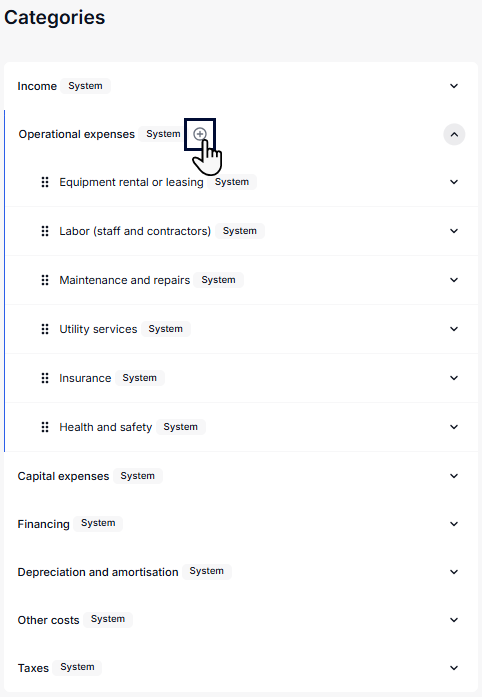
Hover over the desired category, select

-
Give the new subcategory a Name.
-
Select Create.
The new subcategory now appears in the category list, and you can use it to map your transactions.
Example
Add the subcategory “On-site security” under the main category Operational expenditures (OPEX).
Further actions
-
Add additional subcategories in the same manner if needed.
-


Note
-
You can not delete or edit main categories.
-
You can not delete subcategories that are already in use, which means:
-
You have already mapped transactions with it.
-
They are used in a forecast.
-
Monitor category-related information on the dashboard
Compare expected and actual cashflow based on categories and subcategories with the following widget: