
Last modified:
About persons
-
Persons are single individuals who are associated with a specific asset in some way. Therefore, you must create or import them at a specific organization level.
-
For production assets in conceptual stage, you can only create a maximum of 10 persons. See Conceptual stage for production assets.
Create a new person
Prerequisites
-
An organizational structure with assets already exists.
-
You are the organization owner, an admin, or a member of all domains or the operations domain.
Steps
-
Select the organization level from the side bar that the person belongs to.
-
Select the domain tab

-
Select the tab Persons.
-
Select +New person.
-
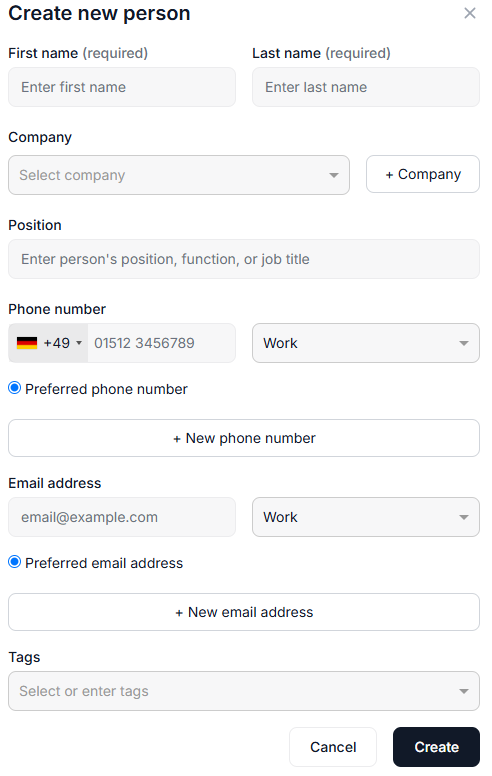
Fill in all the person’s contact details:
-
First name, last name, phone numbers, email addresses, etc.
-
Company to which the person belongs to: Select an already created company from the dropdown, or create a new one by selecting + Company.
-
Position: Enter the person’s position, function, or job title, for example, asset manager, tax advisor, investor, etc.
-
Tags: You can use topic-related tags to optimize your searches for all kinds of information, for example operations & maintenance, bank, etc. See also Tags for optimized search.
-
-
Select Create.
Your new contact person now appears in the list of persons.
Create multiple persons at once by importing a CSV file
Note
Persons must be imported separately at each organizational level to ensure that they are assigned to the correct assets.
Prerequisites
-
An organizational structure with assets already exists.
-
You are the organization owner, an admin, or a member of all domains or the operations domain.
Steps
-
Select the organization level from the side bar that the persons belong to.
-
Select the domain
-
Select

-
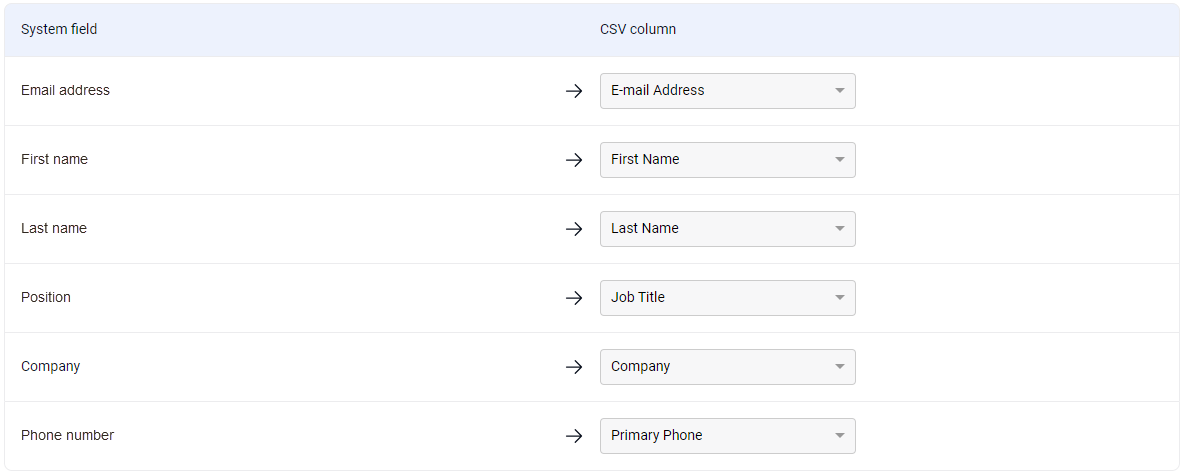
After the upload, the system scans your file for matching columns. It matches your data to the system columns with the person attributes automatically. If some of your data could not be matched to a system column, you will have to match the columns from your CSV file manually to the missing system columns:
-
Select the column of your CSV file to match the missing system column.
-
-
Select Next. A table with all the matching data is displayed.
-
Review the table
-
Select Finish.
All imported contact persons now appear in the list of persons. If your CSV file also included the companies to which the persons belong, those companies will also be created as separate entity in the Companies tab, and the respective persons are assigned to them.