Last modified:
Create a system report template
Report templates use variables to represent data points such as names, dates, measured values, charts, etc. Variables are always surrounded by curly brackets { }.
Prerequisites
-
Your user group permissions allow you to create system reports
Steps
-
At PORTFOLIO LEVEL , go to

-
Select Create new report template.
-
If desired, select a sample report template.
-
Use the report editor to set up the basic structure of your report: design, headings, tables, etc.
-
Place your cursor where you want to add a variable in the document.
-
From the Variables dropdown, select a variable category.
-
Select a variable from the sidebar by selecting

-
Add additional variables as needed.
-
Select Save report template.
The report template will be added to the Report templates overview.
Charts and images
To insert a chart or image in your report template, you must insert a variable, which is represented by a placeholder image. The placeholder is replaced by the respective chart or image when the report is generated.
Tables
Tables containing interval values
Variables in the category Tabular values can generate multiple rows of data and must be included in a table. The table must contain the following parameters:
-
{START}In the first cell of the row, followed by the first variable. -
{END}In the last cell of the row, following the last variable that is displayed in the table. -
A table can only contain data with the same time resolution: daily, monthly, weekly, or annual values.
Example: Table containing interval values
The table below will generate data for each day of the reporting period.
|
Period |
Actual energy kWh |
Normalized energy kWh/kWp |
Expected energy (simulation) kWh |
Irradiance Wh/m² |
|---|---|---|---|---|
|
{START}{mdDay:calc.date} |
{mdDay:calc.E_ZAEHLER} |
{mdDay:calc.E_N} |
{mdDay:sim.E_Z_EVU} |
{mdDay:sim.G_M0}{END} |
Table captions
Steps
-
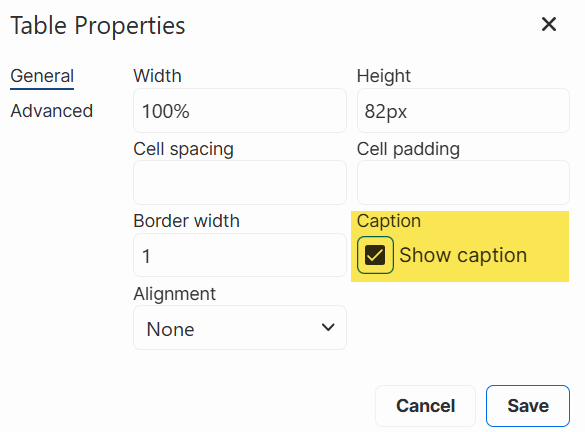
To insert a table caption, right-click on a table in the editor.
-
A window appears. Tick the check box Show caption.
-
A field will appear below the table.
-
Type the desired caption and format it as desired (font, font size, color).