.svg)
Last modified:
Note
Only mc Cloud admins or managers can display and use these user management functionalities. See Permissions.
Overview
On the Users page you can find all information about all your organization’s users. To get there, you have two options:
-
Select your avatar in the top bar, then select Users.
-
MC CLOUD ADMINS ONLY Or select Go to Users page in the footer of the Recent sign-ins widget on your dashboard.
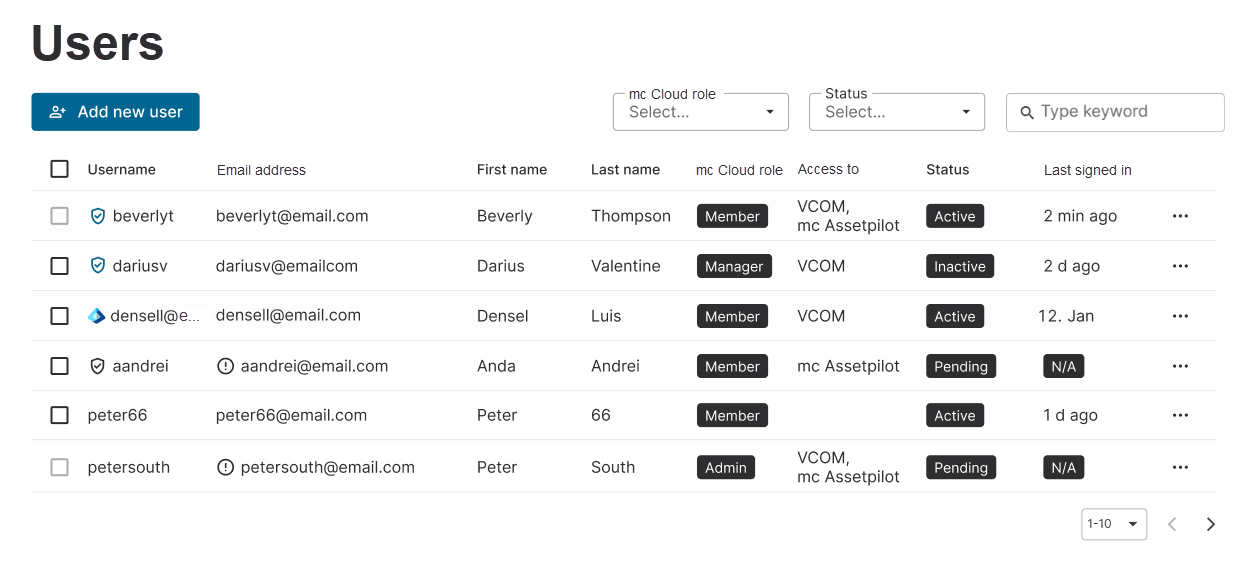
Find the following information in the overview table:
-
Username
-
An additional

-
An additional

-
An additional

-
-
Email address
-
An additional

-
-
First name and Last name
-
mc Cloud role: The user role that this user was assigned to for mc Cloud. See also User roles and permissions.
-
Access to: All meteocontrol applications to which this user was granted access. Not available is shown if no application is accessible.
-
Status: A user can have one of three statuses:
-
pending : This user did not activate their account yet after it has been created. This state is shown together with a
-
Active : This user activated their account and already signed in at least once. Active users have full access to the portal’s features and can access the meteocontrol applications that are listed in their account.
-
inactive : This user can not sign in to their mc Cloud account and can not access the meteocontrol applications in their account. The user account was deactivated either manually by an mc Cloud admin or manager, or it was deactivated automatically after a pre-defined period of inactivity. See below for more information on Automatic deactivation and deletion and the corresponding notifications.
-
-
Last signed in: Time or date of the last sign-in.
-
If a last sign-in date is Not available for a user, this means that they did not activate their account yet. This state is shown together with an
-
View full user profile and delete a user
Select 

-
Full name
-
User role in mc Cloud
-
Date and time of the last sign-in.
-
Links to assign user groups for applications the user has access to. See Assign an application's user group.
-
Contact details, such as email address.
-
User added: The date this account was created. See Creating new users.
-
Last modified: The date this account was edited the last time – either by an admin, manager, or by the user itself. See Edit a user or Manage your account information.
-
Identity provider (only displayed if different from built-in identity provider): The identity provider that the user uses to authenticate themselves, for example, Microsoft Entra.
-

Automatic deactivation and deletion of a user
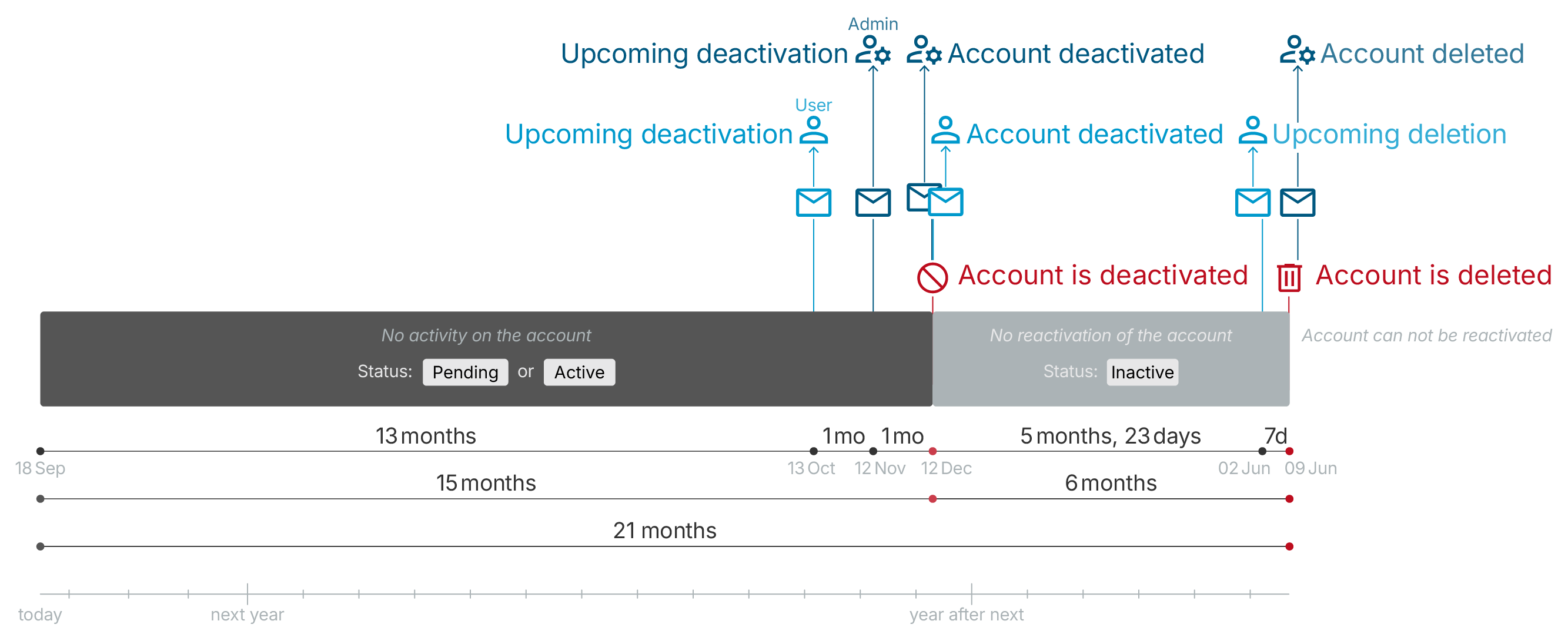
To maintain an up-to-date user directory, accounts that remain inactive for an extended period are automatically deactivated. If inactivity continues, the account is permanently deleted.
Inactivity: A user account is considered inactive if no one signs in to it. Every time a user signs in to their account, the inactivity counter is reset.
Notifications: Before deactivation and deletion occur, affected users and admins receive email notifications with instructions on how to keep the user accounts active.
Note
1 month is always 30 days long and does not vary depending on which month it is.
Automatic deactivation
-
After 13 months of inactivity, the user is notified in advance via email that their account is about to be deactivated.
-
After 14 months of inactivity, the admin is notified in advance via email which of their organization's user accounts are about to be deactivated.
-
After 15 months of inactivity, the user account is automatically deactivated and its status changes to inactive . The user is notified via email that their account has been deactivated. The administrator is notified via email that all affected user accounts have been deactivated.
Automatic deletion
-
After 21 months of inactivity, the user account is automatically and permanently deleted. The admin is notified via email that all affected user accounts have been deleted.
-
7 days before the deletion, the user is informed in advance via email that their account is about to be deleted.
Note
Users who have been manually marked as inactive by a manager or admin will also be automatically deleted after another 6 months of inactivity.
Further actions