.svg)
Last modified:
Note
Only mc Cloud admins or managers can display and use these user management functionalities. See Permissions.
On the Users page you can find all information about all your organization’s users. To get there, you have two options:
-
Select your avatar in the top bar, then select Users.
-
MC CLOUD ADMINS ONLY Or select Go to Users page in the footer of the Recent sign-ins widget on your dashboard.
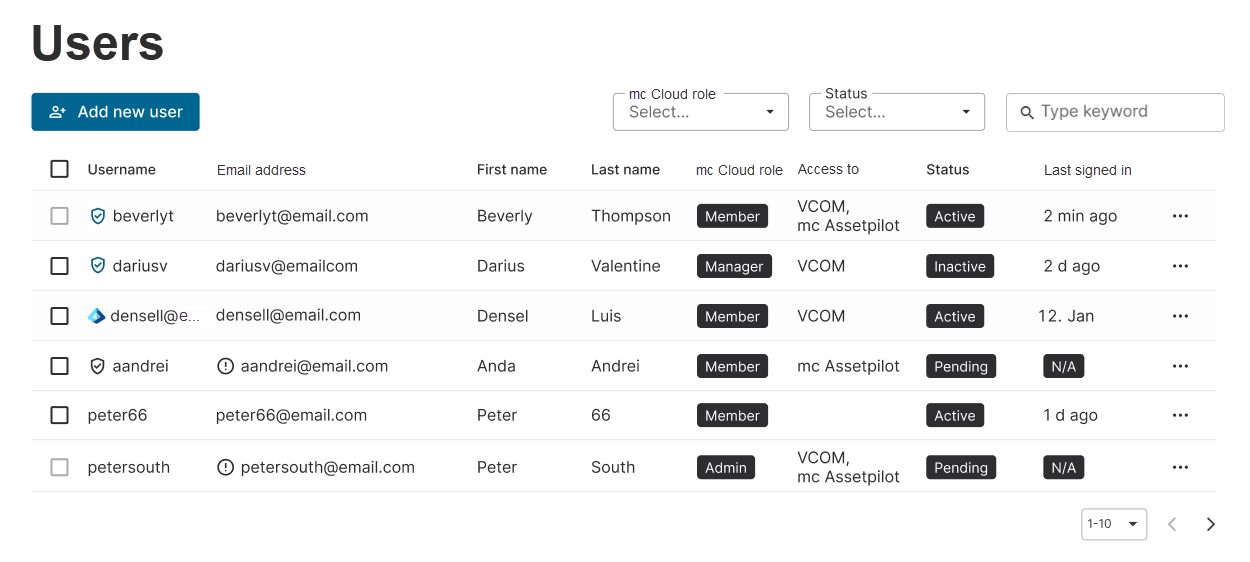
Find the following information in the users list:
-
Username
-
An additional

-
An additional

-
An additional

-
-
Email address
-
An additional

-
-
First name and Last name
-
mc Cloud role: The user role that this user was assigned to you for mc Cloud. See also User roles and permissions.
-
Access to: All meteocontrol applications to which this user was granted access. N/A (not available) is shown if no application is accessible.
-
Status: A user can have one of three statuses:
-
pending : This user did not activate his or her account yet. This state is shown together with an
-
Active : This user activated their account and already signed in at least once. The user has access to the meteocontrol applications that are listed in their account.
-
inactive : This user’s account was deactivated by an admin or user manager. This user can not sign in to their mc Cloud account and can not access the displayed meteocontrol applications.
-
-
Last signed in: Time or date of the last sign-in.
-
If a last sign-in date is N/A (not available) for a user, this means that they did not activate their account yet. This state is shown together with an
-
View full user profile and delete a user
Select 

-
Full name
-
User role in mc Cloud
-
Date and time of the last sign-in.
-
Links to assign user groups for applications the user has access to. See Assign an application's user group.
-
Contact details, such as email address.
-
User added: The date this account was created. See Add a new user.
-
Last modified: The date this account was edited the last time – either by an admin, manager, or by the user itself. See Edit a user or Manage your account information.
-
Identity provider (only if different from built-in identity provider): The identity provider that the user uses to authenticate themselves.
-

Filter the Users page
You can filter the users list on the Users page by mc Cloud role or status. Alternatively, you can search for a specific first name, last name, username, or email address.