.svg)
Last modified:
Note
Only mc Cloud admins or managers can display and use these user management functionalities. See Permissions.
About users in mc Cloud and other applications
As a first step, you must set up user accounts in mc Cloud: user name, email address, mc Cloud role, and assign applications. You then configure further settings for each user in the respective application.
Example for VCOM
-
First set up users in mc Cloud and assign them to VCOM.
-
After the initial setup in mc Cloud, the user also appears in VCOM. Assign application-specific details such as the user group, team, and systems in VCOM.
-
After the initial setup in mc Cloud, users have access to VCOM with a username and password.
Note
The user roles and permissions of mc Cloud do not necessarily reflect user roles and permissions for other applications.
Example: If you are a member in mc Cloud, it does not necessarily mean that you are assigned the member user role in mc Assetpilot, or the operations user group in VCOM.
Exception Admin only : If you are an admin in mc Cloud, you automatically have admin rights in all of your organization’s other meteocontrol applications.
Add a new user
Add new users to your organization one by one. Every user will then receive an activation email to activate their account personally.
Prerequisites
-
You have the user role admin or user manager in mc Cloud.
-
You know the full name and a valid email address of the new user.
Steps
-
Navigate to the Users page. To get there, you have two options:
-
Select your avatar in the top bar, then select Users.
-
Or select Go to Users page in the footer of the Recent sign-ins widget on your dashboard.
-
-
Select

-
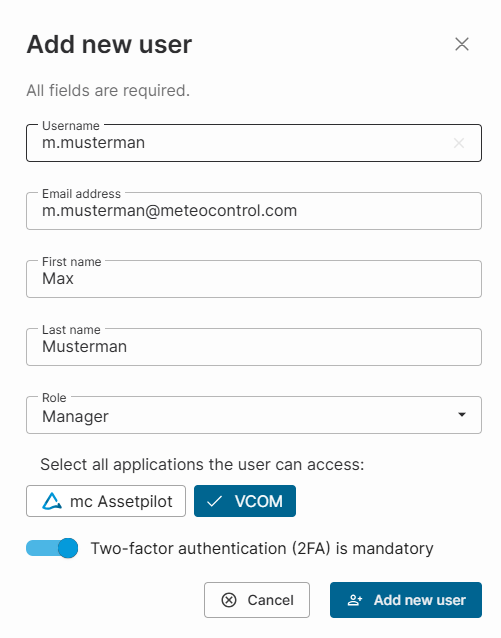
Fill in all the fields with personal information, such as Username, Email address, First name, Last name.
Note
The username can not be changed after account creation.
-
Select the user’s mc Cloud Role. See also User roles and permissions. You can only add members or managers. Contact our Support if you want to add an admin.
-
Under Select all applications the user can access, select the relevant meteocontrol applications. You can select multiple applications.
-
admins only Optionally, activate the toggle to

-
Select
What happens?
-
The user appears in the users list with the status pending . See Users page status. By default, the users list is sorted alphabetically by username. Depending on the username you just assigned, you may have to navigate to another page of the list to see the newly added user.
-
The user is added to the user management of the meteocontrol applications you selected in step 5. They are given the default user group for these applications (for VCOM this is the user group Customer). You can change their user group in the user management of the respective application.
-
The user receives an email with an activation link and has to follow the steps to activate their account. That email is sent in the same language that was selected in your portal when you created the user.
Caution
The activation link is valid for 14 days. After that, the account will be deleted if the user has not activated it by then.
If you want to resend the email with the activation link to the user during these 14 days, edit and save the user profile without making any changes. See Edit a user.
Use the same email address for multiple accounts
If you have multiple VCOM accounts or you are an external provider who needs access to different assets of different organizations, you must provide a unique email address for every mc Cloud account. This ensures that all notifications you receive from the portal, such as password resets or 2FA activations, can be delivered reliably.
If you do not want to or are unable to do so, it is technically possible to use the same email address for multiple accounts, although we strongly advise against it. To do so, use the plus-addressing feature (also called subaddressing or tagged addressing):
-
The feature is widely supported by email providers. Check that your email provider or mail server allows this, otherwise the solution may not work.
-
It works by adding a
+extensionbefore the@symbol to make each email address unique. -
You can choose any extension you want as long as it is placed between the
+sign and the@symbol. -
All emails sent to your plus-extended addresses will still arrive in one place: your main inbox. You do not have to check your emails in multiple places.
Examples
Use case 1: You use the following email address for three different VCOM accounts in order to carry out different tasks within your organization: your-name@company.com.
Solution 1: Add three different plus extensions to your main email address according to the tasks you carry out with the account, for example:
-
Email address for account 1: your-name+admin@company.com
-
Email address for account 2: your-name+operations@company.com
-
Email address for account 3: your-name+investor@company.com
Emails for all three accounts will arrive in the inbox of your-name@company.com.
Use case 2: You are using the following email address for three different VCOM accounts of three different organizations: yourname@email.com.
Solution 2: Add three different plus extensions to your main email address according to the organization they belong to, for example:
-
Email address for account 1: yourname+best-solar@email.com
-
Email address for account 2: yourname+allenergy@email.com
-
Email address for account 3: yourname+powerpartner@email.com
Emails for all three accounts will arrive in the inbox of yourname@email.com.
Tip
With plus-addressing, you can also automatically filter all emails into different folders.
Further actions
-
Help your users to activate their account and sign in. See Set up portal and sign in.