.svg)
Last modified:
Learn how to activate your account initially and how to sign in to it.
Activate your account
You need to have a personal account to use mc Cloud. Usually, your organization's admin or user manager will create an account for you. You will receive an email with the option to activate your account and set a password.
Warning
If you are unaware of any account creation but receive an email to perform this action, contact your organization’s user manager or admin before selecting any links or buttons in that email.
Prerequisites
-
You have received an email invitation or a valid URL to activate your account.
-
You are aware of the account creation.
-
An mc Cloud admin or manager has assigned VCOM to you.
Steps
-
Select Activate account in the invitation email.
Caution
The activation link will be valid for 14 days. After that, your account will be deleted if you did not activate it by then. Your organization’s admin or user manager must recreate the account, so that you can activate it after these 14 days.
-
A new browser tab opens.
Note
If a two-factor authentication (2FA) is required for your account, you must set this up now. See Set up 2FA for your account.
-
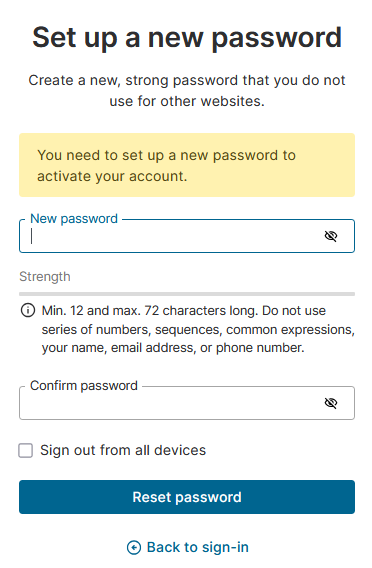
Set and confirm your password.
Warning
Take notice of our Password guideline, when setting a password.
-
Select Reset password.
-
A new browser tab opens. Select Back to sign-in.
Your account is activated now. You can sign in with your new sign-in credentials.
Sign in to your account
Prerequisites
-
You have activated your account.
-
If you want to use an external identity provider (IdP), such as Microsoft, this option must be enabled for your organization. See Enable signing in with Microsoft for your users.
Steps
-
Choose an identity provider to sign in with:
A) Use the portal’s built-in identity provider:
-
Fill in your mc Cloud account’s Username and the Password you set up when creating your account.
-
If you forgot your password, see Reset a forgotten password.
B) Use external IdP, such as Microsoft:
-
Select Sign in with Microsoft.
-
When signing in for the first time, follow the appearing steps using your Microsoft credentials to link your mc Cloud account with Microsoft.
-
On following sign-ins, your Microsoft credentials are pre-filled.
Note
If you choose to sign in with an external IdP, you can no longer sign in with your mc Cloud credentials on future sign ins.
-
Select Sign-in.
Note
If two-factor authentication (2FA) is set up for your account, you must enter the one-time password (OTP) from your authenticator app now. See Manage two-factor authentication (2FA).
You are signed in now and arrive at your dashboard.
Troubleshooting: activating accounts and signing in
|
Problem |
Recommended action |
|---|---|
|
Signing in fails |
|
|
Your account activation link has expired |
Your organization’s admin must prompt a password reset in mc Cloud. See Prompt password reset for a user. |
|
You have used the plus-addressing feature for your email address (e.g. |
Check that your email provider or mail server supports plus-addressing. Otherwise, this solution may not work. |
Further actions
-
Learn more about the Portal structure