.svg)
Note
This product has been discontinued and is no longer maintained.
If you have a park administration in VCOM and have the corresponding rights
-
Click the symbol with the house


-
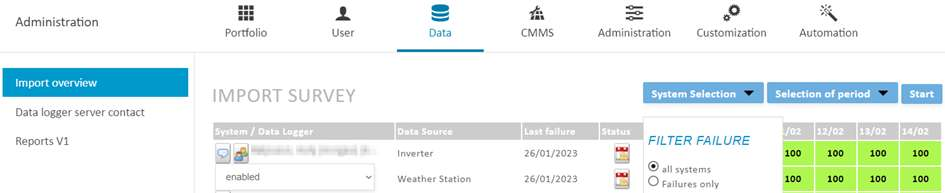
Then click on Data and Import overview in the new window
-
Via System selection, set the filter to all systems and click on Start on the right
-
The corresponding data logger can be found by scrolling through the list (not identifiable)

-
Two data tables are available with this data logger (Analog / Digital, String currents)
-
Use button

-
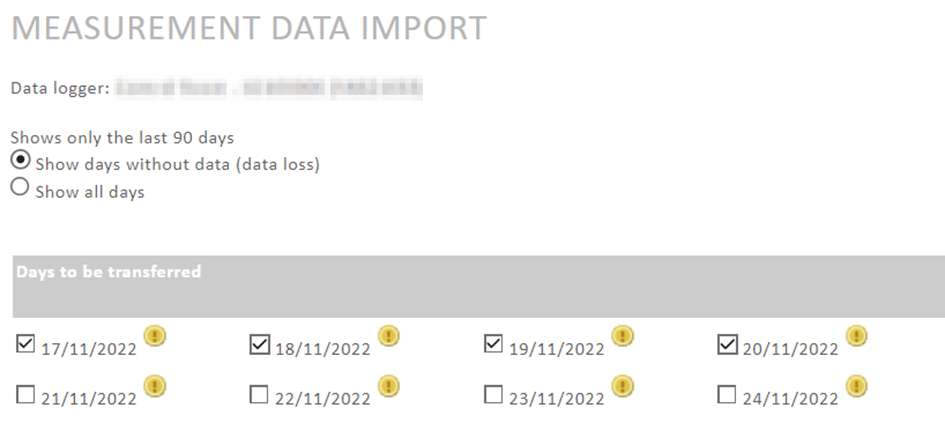
In the new window, the individual days for catching up can be clicked on
-
Finally click at the bottom on

-
If the system includes several data loggers, the procedure must be carried out for each data logger
You can copy the records from the CF memory card
-
WEB’log disconnect the power
-
Pull CF memory card out of slot (right side of WEB'log)
-
Insert the CF memory card from the WEB'log into a USB memory card reader
-
Connect memory card reader with USB to PC
-
Access the new drive with the Explorer
-
Mark the subdirectory DATA and press (Ctrl) (C) for copying
-
Navigate to a drive on the PC, e.g. "C", and create a new directory
-
In the new directory, press (Ctrl) (V) to insert
-
The complete subdirectory DATA of the WEB'log is copied to the PC (this may take a few minutes, however)
-
Mark the DATA directory and zip this directory, e.g. with "7-Zip"
-
Send the zip archive by e-mail to technics@meteocontrol.com with the subject "Data import". Please include the serial number of the data logger (xxxxxx xxxx xxx) so that we can import the attached data, thank you
-
Dismount the memory card reader from the PC and unplug the USB memory card reader
-
Remove the CF memory card from the memory card reader and reinsert it in the WEB'log
-
WEB’log reconnect the power